
Add a child and respond to a duplicate notice
Before you begin
Section titled “Before you begin”Only users with the relevant child-management permission can create a child record. Check the child’s identity and the setting they belong to before starting. Do not create a new profile simply because you cannot find a child on the first search.
Start the form
Section titled “Start the form”- Open Children.
- Select Add Child.
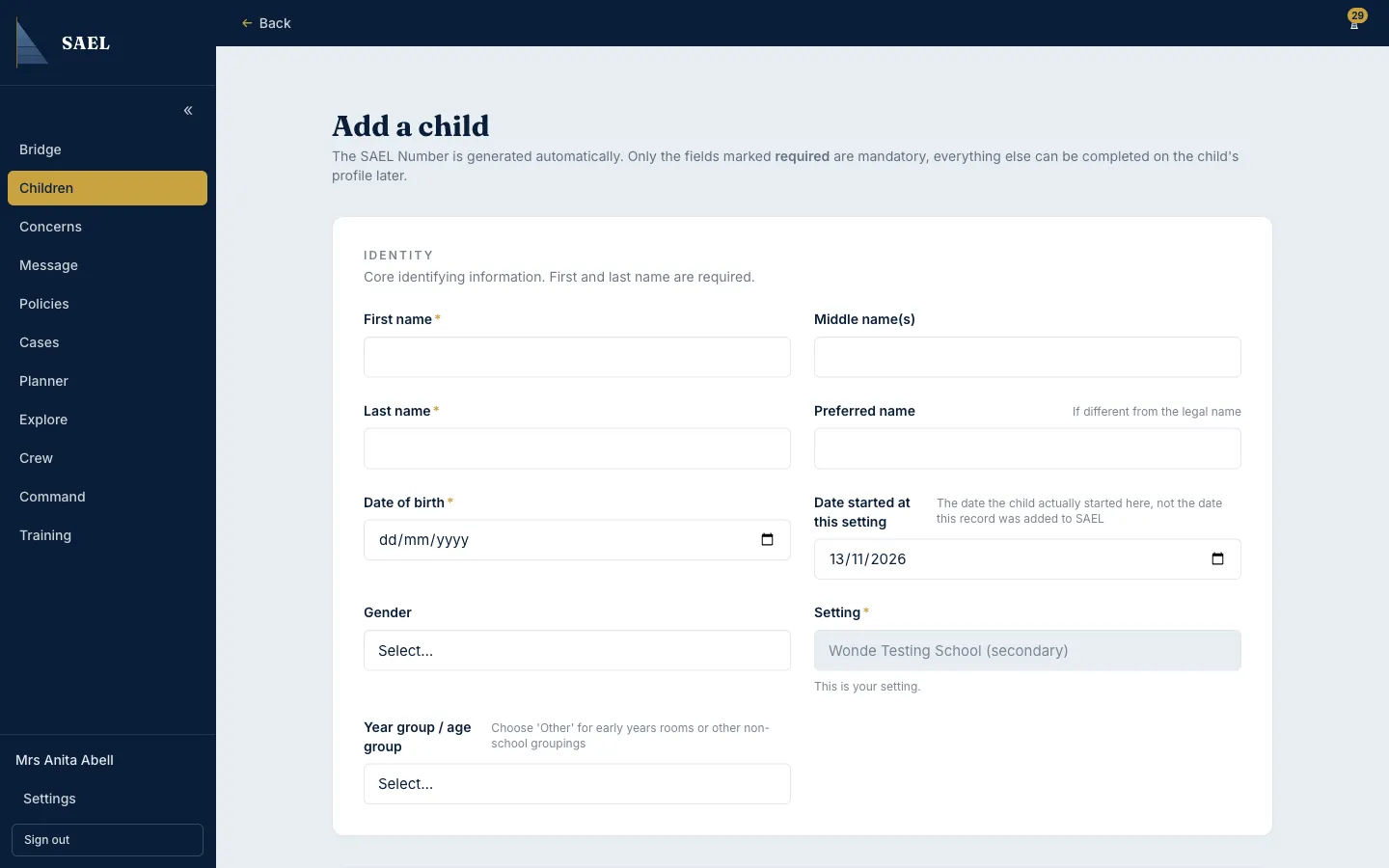
- Complete the required identity fields: first name, last name, date of birth and setting.
- Add the date the child started at your setting when known.
- Complete any relevant optional information available on the form, such as preferred name, demographics, address, GP, health information, medication, medical alerts or collection password. Only enter information that your setting is authorised to hold and that is relevant to the child’s care or safeguarding.
- Review the information for spelling and date-of-birth errors before continuing.
If SAEL notifies you of a possible duplicate
Section titled “If SAEL notifies you of a possible duplicate”- Select the final create action.
- For a setting opted into MAST™, SAEL may notify you that a profile matching these identity details already exists elsewhere in MAST™. You are not shown the other record or any of its details, only that a possible match exists.
- Choose how to proceed:
- Hold off and contact SAEL support if you want the match checked before a profile is created. Do not try to track down the other record yourself.
- Create the profile anyway if you are confident this is a genuinely new, separate child. SAEL creates it as a normal, independent record.
- Wait for the success message and open the new profile.
- Record the new SAEL Number in your setting’s appropriate handover process. It is the stable identifier to use when referring to the record or arranging a Journey.
A setting that is not opted into MAST™ does not receive this notice at all. The record is created as soon as you select the final create action.
If you are unsure whether to create the profile
Section titled “If you are unsure whether to create the profile”Do not create a profile just to get around an access restriction, and do not assume the notice means you already know who the other record belongs to — you haven’t seen it. If anything about the notice is unclear, hold off and contact SAEL support rather than guessing.