
Review and triage a concern
Open the review queue
Section titled “Open the review queue”- Open Concerns.
- Use the queue tabs to choose the work you need to review, such as open concerns, concerns needing review, pending referral or closed concerns.
- Use the About, Priority and Type filters when available to narrow the list. For example, filter to urgent concerns or allegations.
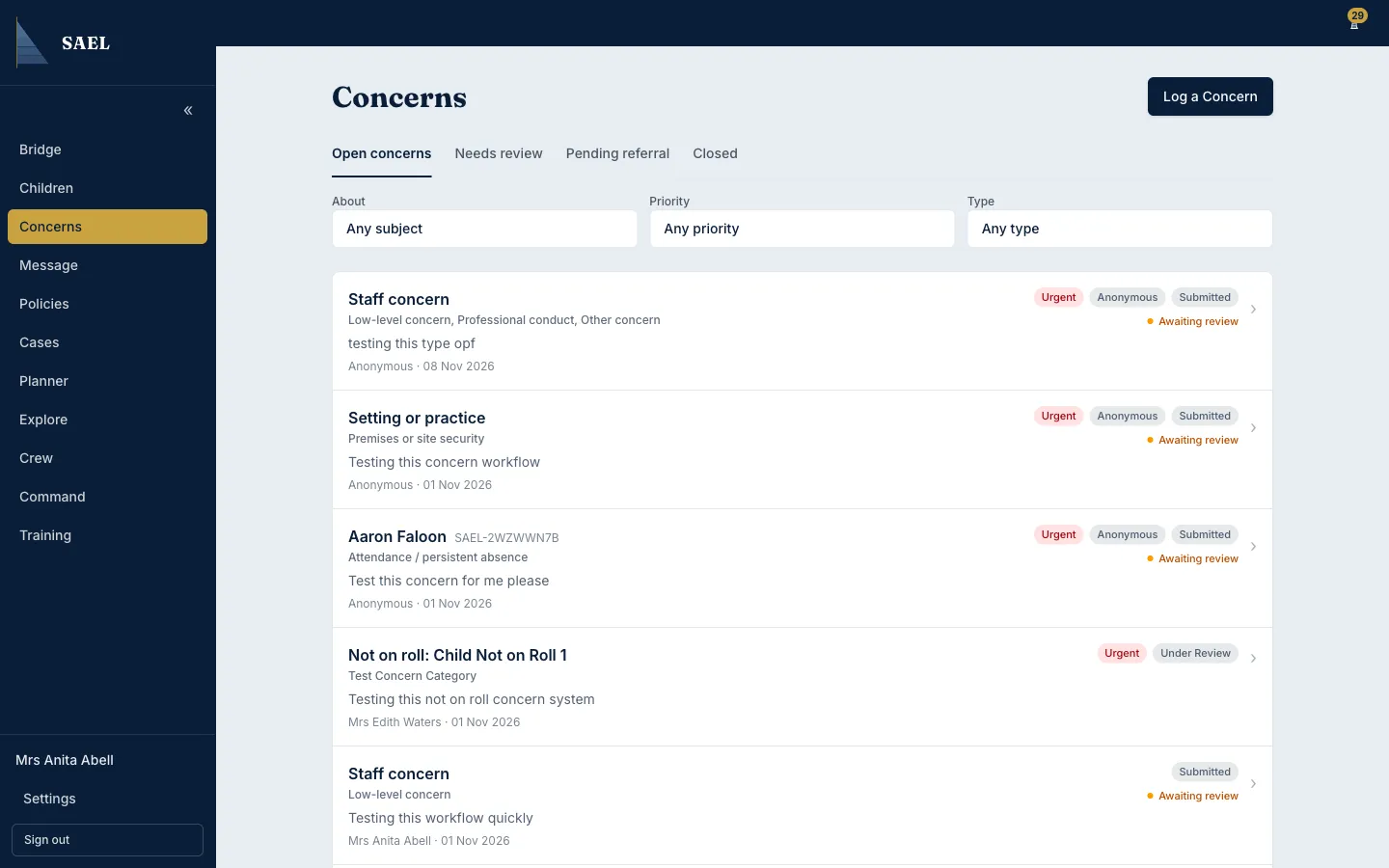
- Open the concern you intend to review. Confirm the child or subject and read the full account before changing its status.
Complete the initial review
Section titled “Complete the initial review”- Read the event date, description, category, priority, reporter and any other context shown on the concern.
- Review linked child information and relevant chronology entries where your role allows it.
- Record the initial review using Mark reviewed when that control is available. If the screen requires an access reason or an additional confirmation, complete it before proceeding.
- Add a review note where necessary. Record the decision, who was consulted and the next steps in a way another authorised DSL can understand.
- Use the concern’s referral, triage or governance areas to record the setting’s next action. Complete external referral details only when they have actually been made.
- Check whether the concern has a review deadline or routing assignment. The setting’s severity targets and routing rules may affect the deadline and reviewer shown.
Why notes and actions may be unavailable
Section titled “Why notes and actions may be unavailable”Some concern records lock the notes and actions controls until the initial review has been recorded. Complete the initial review first, then return to the relevant tab or section.
Continue to monitor
Section titled “Continue to monitor”A concern may remain open while work is under way. Use the concern queue and dashboard to return to it, record new information and complete actions. Do not close a concern just to remove it from a queue. The record should reflect the real safeguarding position and your setting’s procedures.