
Create a custom role and choose capabilities
Open Roles & permissions
Section titled “Open Roles & permissions”- Open Command → Organisation → Staff & roles.
- Scroll to Roles & permissions.
- Select New role. A drawer opens on the right.
- Decide whether to start from a preset or a blank custom role.
Start from a preset
Section titled “Start from a preset”- Choose All, School, Early years or Leadership and specialist to filter the preset list.
- Read the description of a preset before selecting it.
- Select the preset that is closest to the person’s real duties. SAEL fills in the role name and description and seeds the preset’s capabilities when you create it.
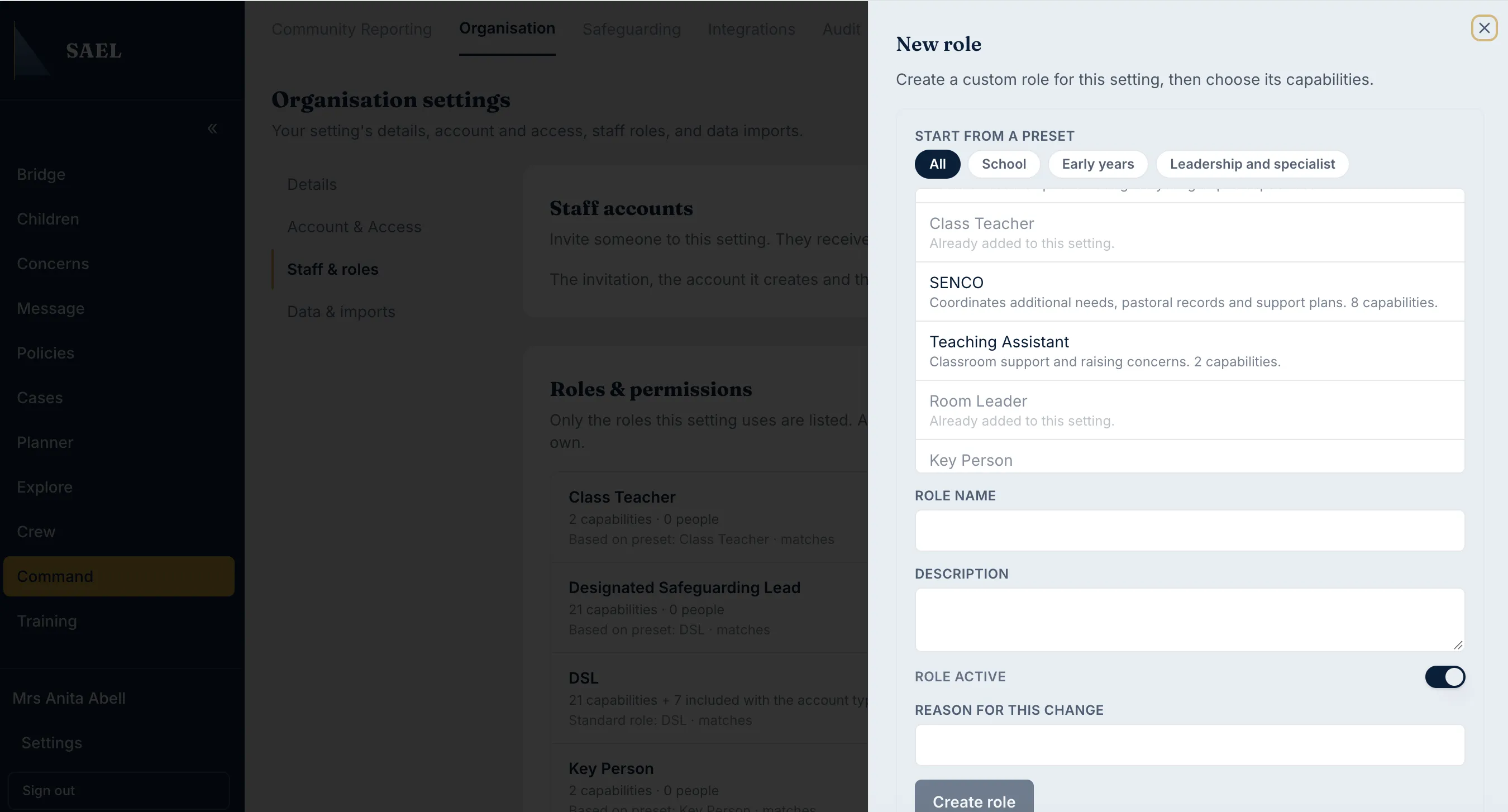
- Check the role name and description; edit them if the setting needs a clearer label.
If the preset is already added to the setting, SAEL disables it in the list and explains that it is already in use. Choose another preset or start with a custom role.
Start with a blank role
Section titled “Start with a blank role”Select Custom role at the top of the preset list. Enter a clear Role name and a description explaining the intended duties and limits.
Create the role
Section titled “Create the role”- Check the Role active switch is on if you intend to use the role now.
- Enter a meaningful Reason for this change. This field is required.
- Select Create role.
- SAEL saves the role and opens its editor. The role appears in the setting’s role list.
Set capabilities
Section titled “Set capabilities”- Select the capabilities tab in the role drawer.
- Review each group: Concern, Child, Staff and Administration. Safeguarding capabilities are shown in a separate highlighted section.
- Read each capability’s description, then turn on only those capabilities needed for the role.
- Observe any dependency note. Some capabilities require a parent capability to be enabled first. Switch on the parent before the dependent option. Switching a parent off also removes capabilities that depend on it.
- Enter a Reason for this change.
- Select Save capabilities.
- Wait for the success confirmation, then reopen the role if needed to check the saved switches.
A built-in role cannot be edited in this drawer. Its details are locked, but its assigned people and permissions can be reviewed. Custom roles with people assigned cannot simply be deactivated; move those people to another role first.