
Add an individual training requirement and record completion
Open the staff member’s record
Section titled “Open the staff member’s record”- Open Crew → Staff.
- Search for the person and select their row.
- Open the Training tab in their staff compliance record.
- Review the training currently required and any recorded completions before making a change.
Add an individual requirement
Section titled “Add an individual requirement”- Select Add individual requirement or the add control in the Training section.
- Choose an existing training type from the selector, or use the custom training option if the form provides it.
- If creating a custom item, enter its name and validity in months.
- Enter any notes requested by the form.
- Select the add/save action and check the item appears in the staff member’s Training list.
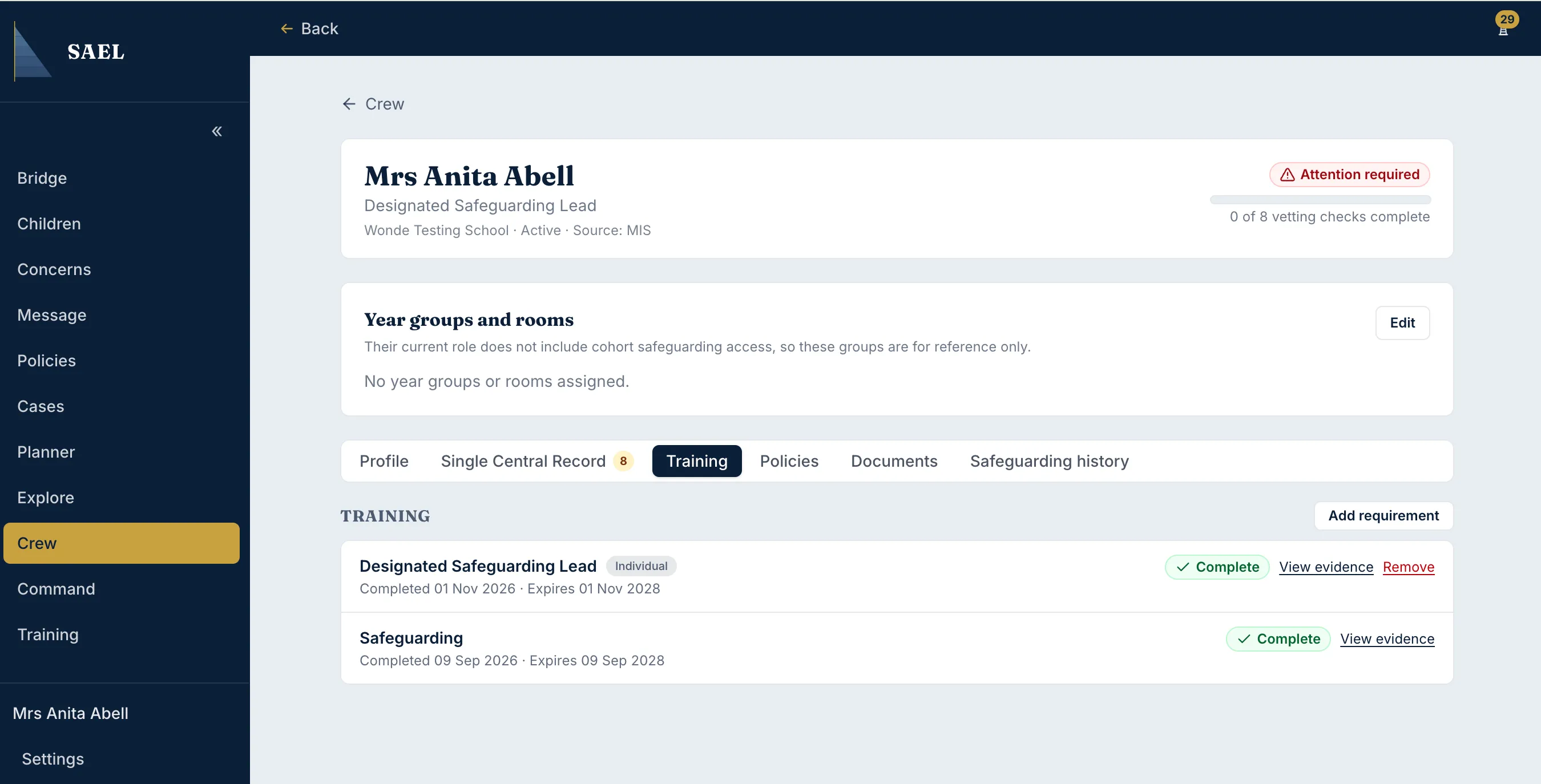
An individual requirement is specific to that staff member. Setting-wide requirements are configured separately using Manage training on the Crew staff overview.
Record or review a completion
Section titled “Record or review a completion”Use the completion action for the relevant training row and enter the requested completion date and evidence details. Upload the certificate or other evidence where the form offers it. Check the person, course name, date and expiry information before saving.
If a certificate has been recorded, open it from the staff record and confirm that it belongs to the correct person and course. A course marked complete without the expected supporting evidence may still need follow-up under your setting’s policy.
Remove an individual requirement
Section titled “Remove an individual requirement”Use the remove control next to the item and read the confirmation. Removing a requirement is not the same as removing a historic completion. Keep the record where it is evidence of training already undertaken; if SAEL blocks the removal because a completion exists, do not attempt to work around that protection.