
Invite a staff member
Before sending an invitation
Section titled “Before sending an invitation”You need the manage users permission for the setting. A normal setting invitation must be for a person who needs access to that setting. Check the person’s correct work email address and the role they need before sending the invitation.
Open the invitation form
Section titled “Open the invitation form”- Open Command from the main menu. If you land on Crew, use the Crew/Command area switch or Command heading to move into the setting-management area.
- Select Organisation.
- Select the Staff & roles tab.
- In the Staff accounts panel, select Invite Staff Member. SAEL opens the Crew staff page and the Invite Staff Member form.
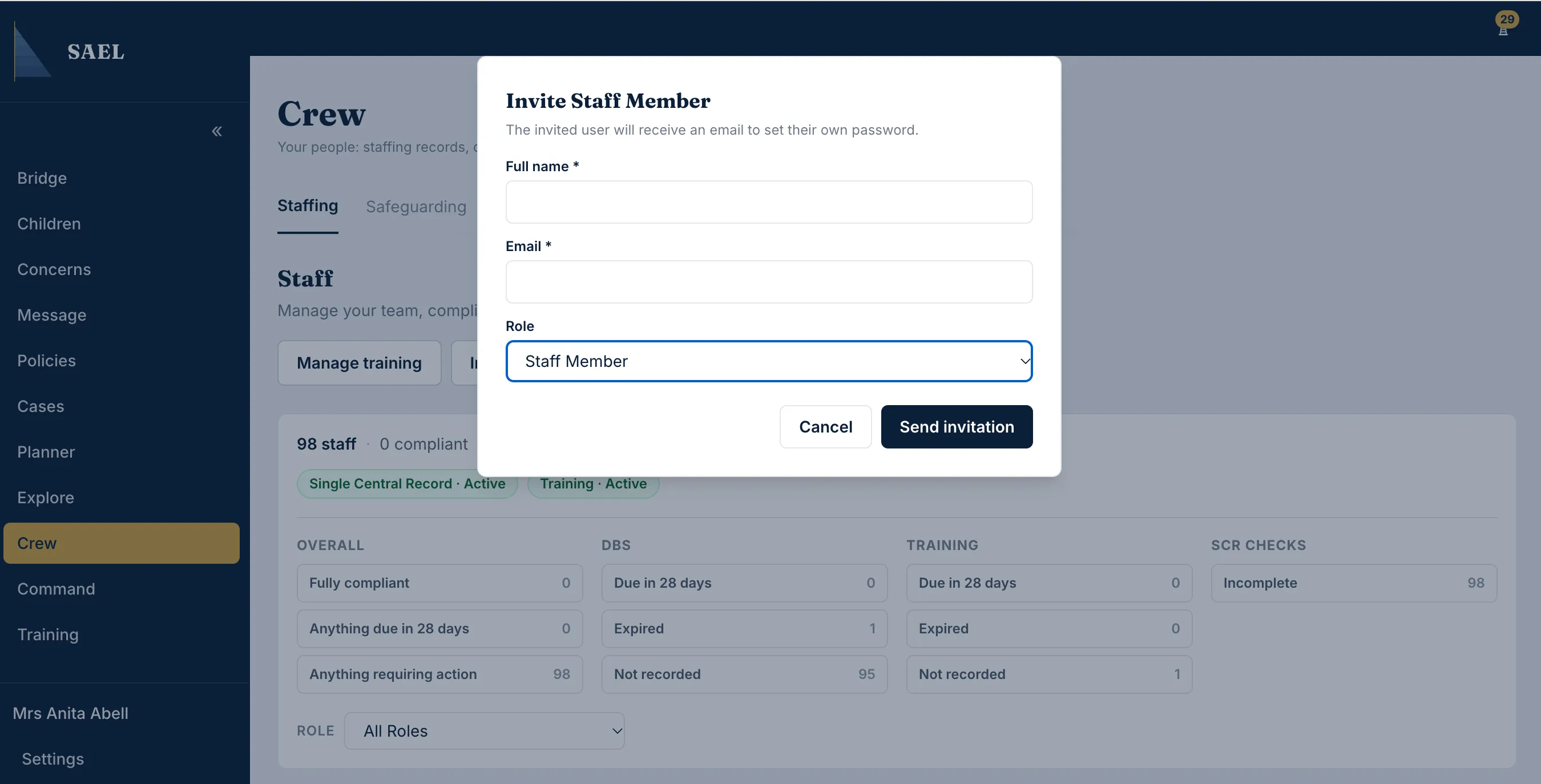
- Enter the person’s Full name.
- Enter their Email address. Check the spelling carefully; the invitation goes to this address.
- Open the Role dropdown and choose the initial account role:
- Staff Member for ordinary frontline access and the ability to raise concerns.
- Deputy Designated Safeguarding Lead for the deputy safeguarding role.
- Designated Safeguarding Lead for the DSL role.
- Headteacher for the headteacher role.
- Staff Administrator for staff administration/compliance work.
- Recheck the role and email address. The invitation role is not just a display label; it determines the account’s initial access.
- Select Send invitation.
- Wait for the success message confirming the invitation was sent. The invited person receives an email with a secure link to set up their own password.
What happens after sending
Section titled “What happens after sending”The person accepts the invitation using the same email address and sets their own password. Once the account exists, you can assign a custom setting role under Command → Organisation → Staff & roles → Roles & permissions → [role] → People. A custom setting role is an additional layer of setting-specific access design; it is not the same as changing the original account role through the invitation dropdown.
Common invitation messages
Section titled “Common invitation messages”- This person already has an active account. No invite needed. The email already belongs to an active user assigned to this setting. Open their staff record and review their access or role instead.
- This person already has a signed-in account. No invitation email was sent. The account already exists and has been used. Do not expect a new invite email; resolve the existing account/access arrangement.
- Staff account management permission required. Ask the current setting administrator/DSL to invite the person or grant the appropriate management permission.
Ordinary setting invitations offer the five roles above. Additional roles such as Consultant, SAEL Administrator and Oversight Agency are shown only to SAEL administrators; they are not general setting-staff choices.