
Configure staff concern categories
Open Staff concern categories
Section titled “Open Staff concern categories”- Open Command → Safeguarding.
- Select Staff concern categories.
- Review the existing list. The table shows each category’s order, name, source, default severity and whether it is active.
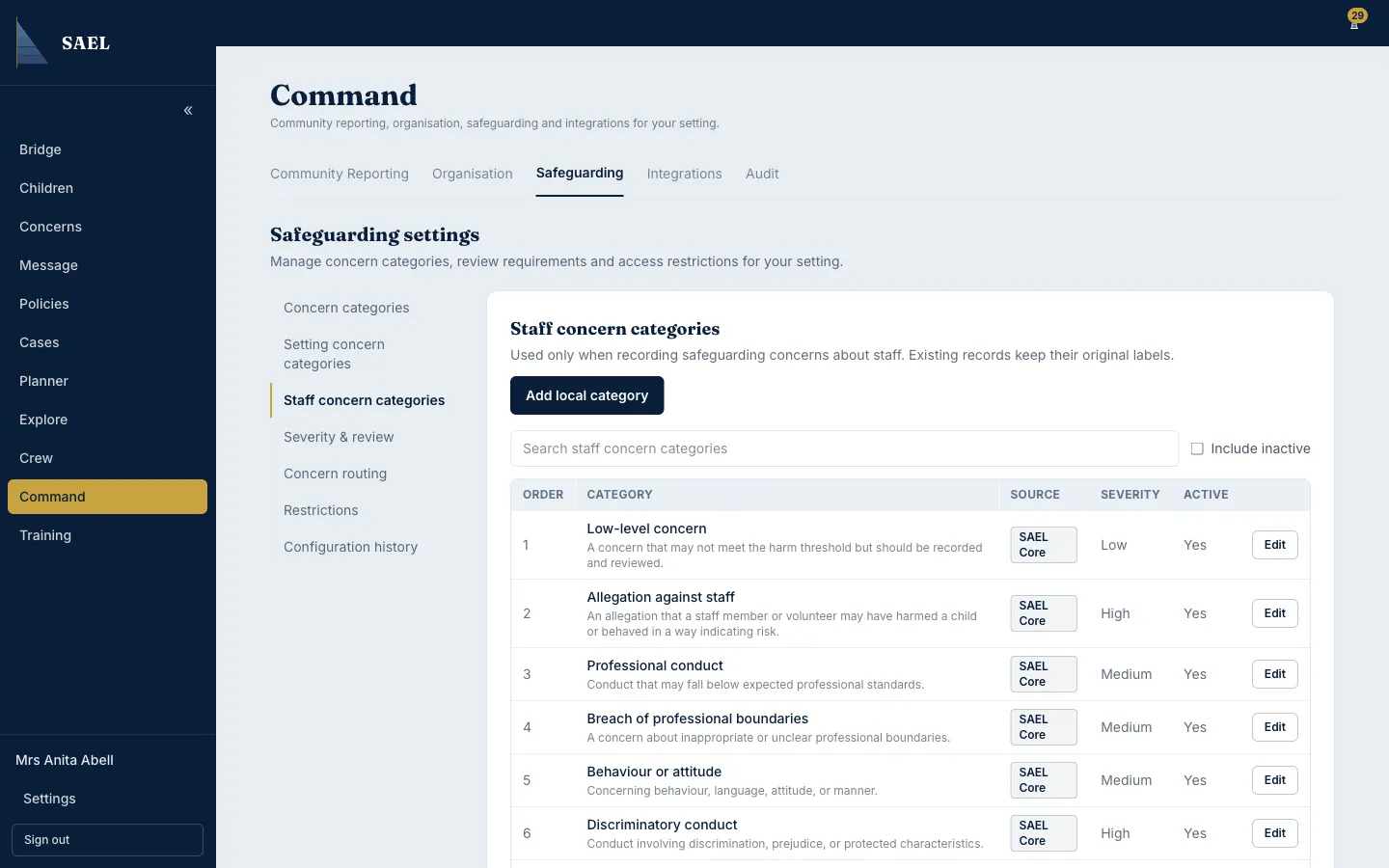
- Use Search staff concern categories to find an existing entry.
Add a local staff category
Section titled “Add a local staff category”- Select Add local category.
- Enter the Display name using a label staff can understand when raising a staff concern.
- Set the Display order to control where it appears in the category list.
- Enter a description explaining the scope of the category.
- Choose the Default severity: Low, Medium or High.
- Enter a reason in Reason for this change if useful. The field is optional in this editor.
- Select Save category.
- Check that the new category appears in the table with the expected severity and active status.
Edit a category
Section titled “Edit a category”- Find the category and select Edit in its row.
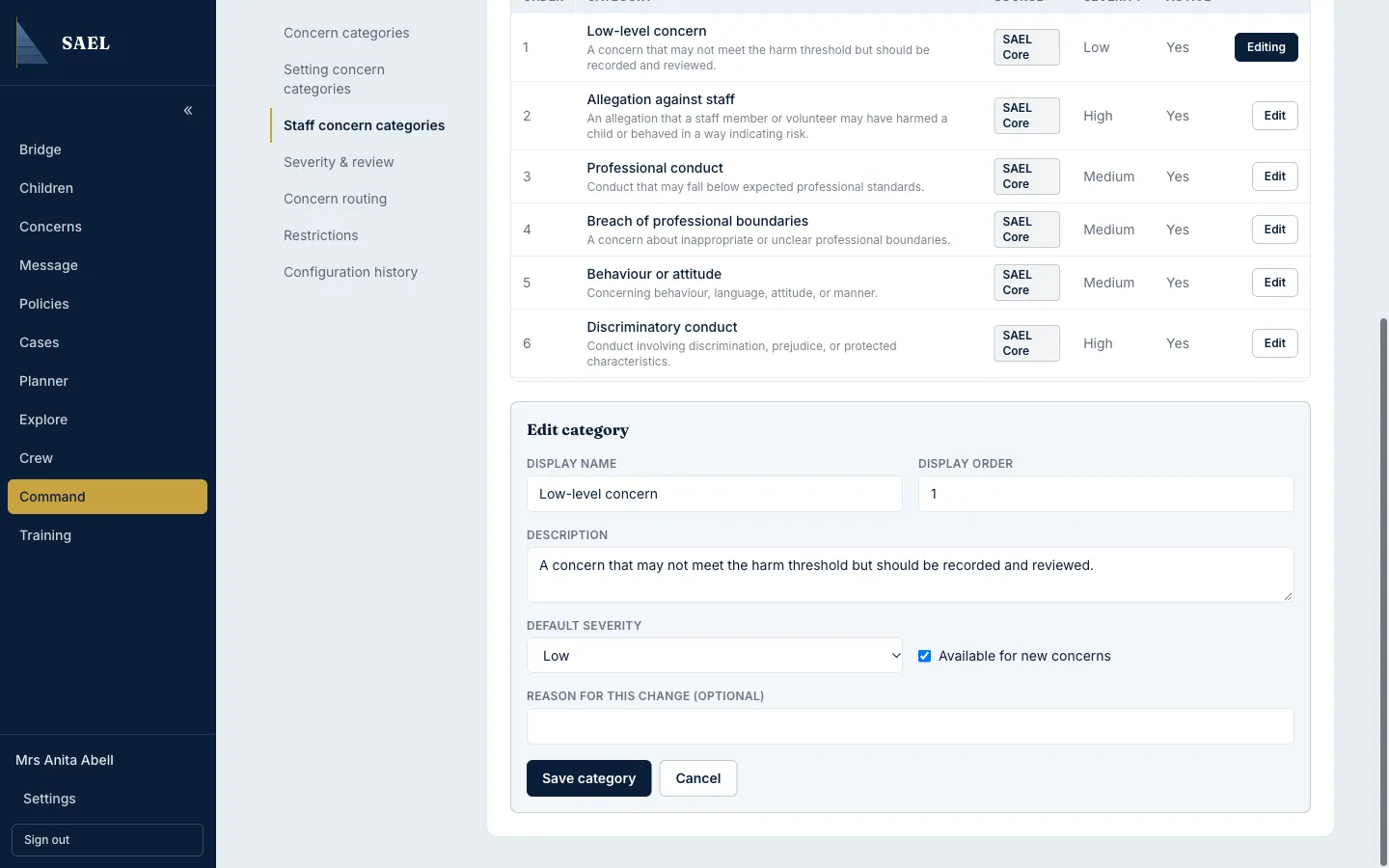
- Change the display name, order, description, default severity or active state as required.
- Review the Duty to Report prompt note shown in the editor. Low severity uses a short question and checks the description for risk wording; Medium and High show the prompt when the concern is logged.
- Select Save category and check the updated row.
The Duty to Report prompt is a prompt, not a forced report. Staff can continue without reporting and the concern is still saved. Do not configure category severity as a way to discourage staff from recording a concern.