
Configure concern categories
Open the correct category tab
Section titled “Open the correct category tab”- Open Command → Safeguarding.
- Select one of the three category tabs:
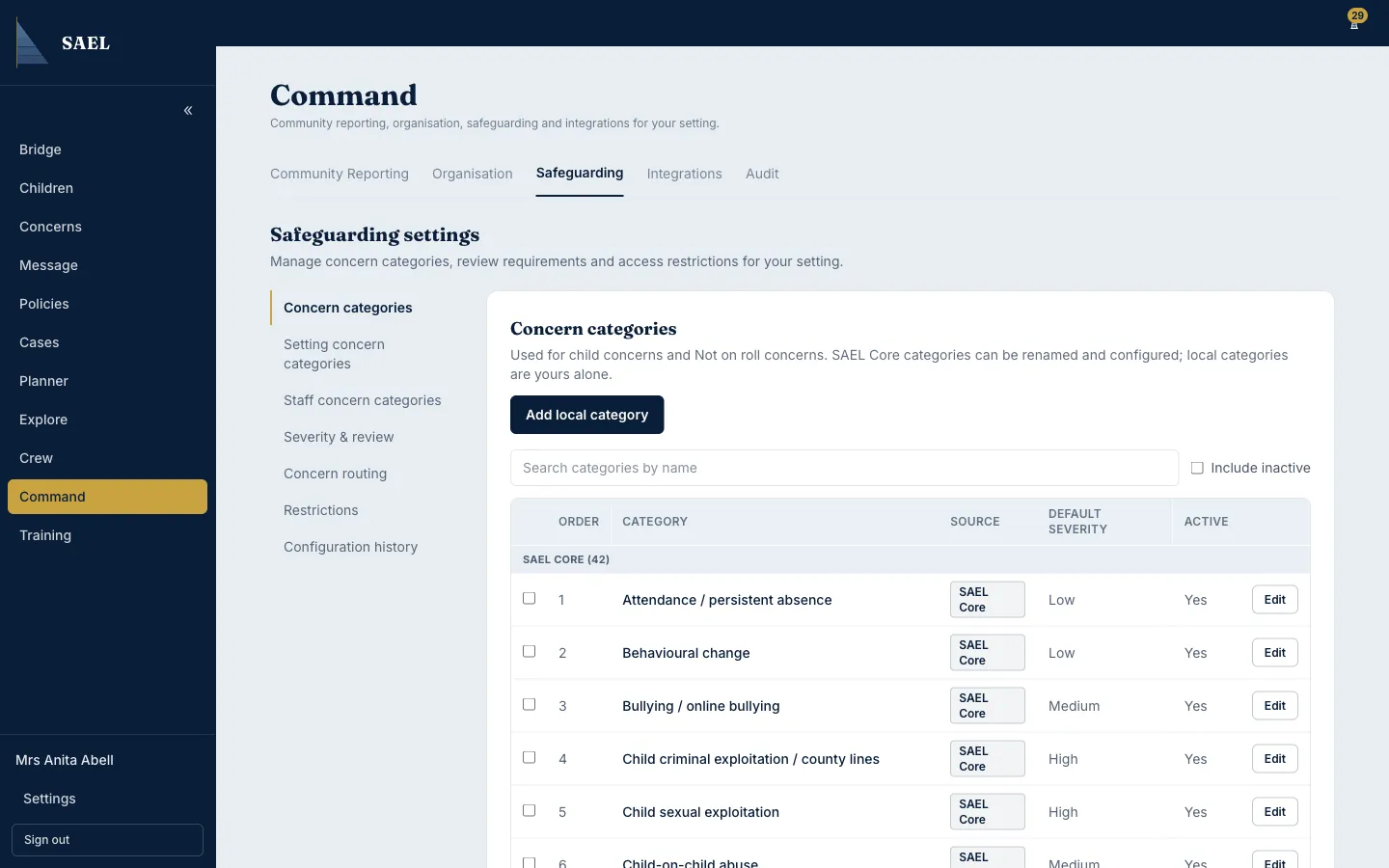
- Concern categories for child concerns and Not on roll concerns.
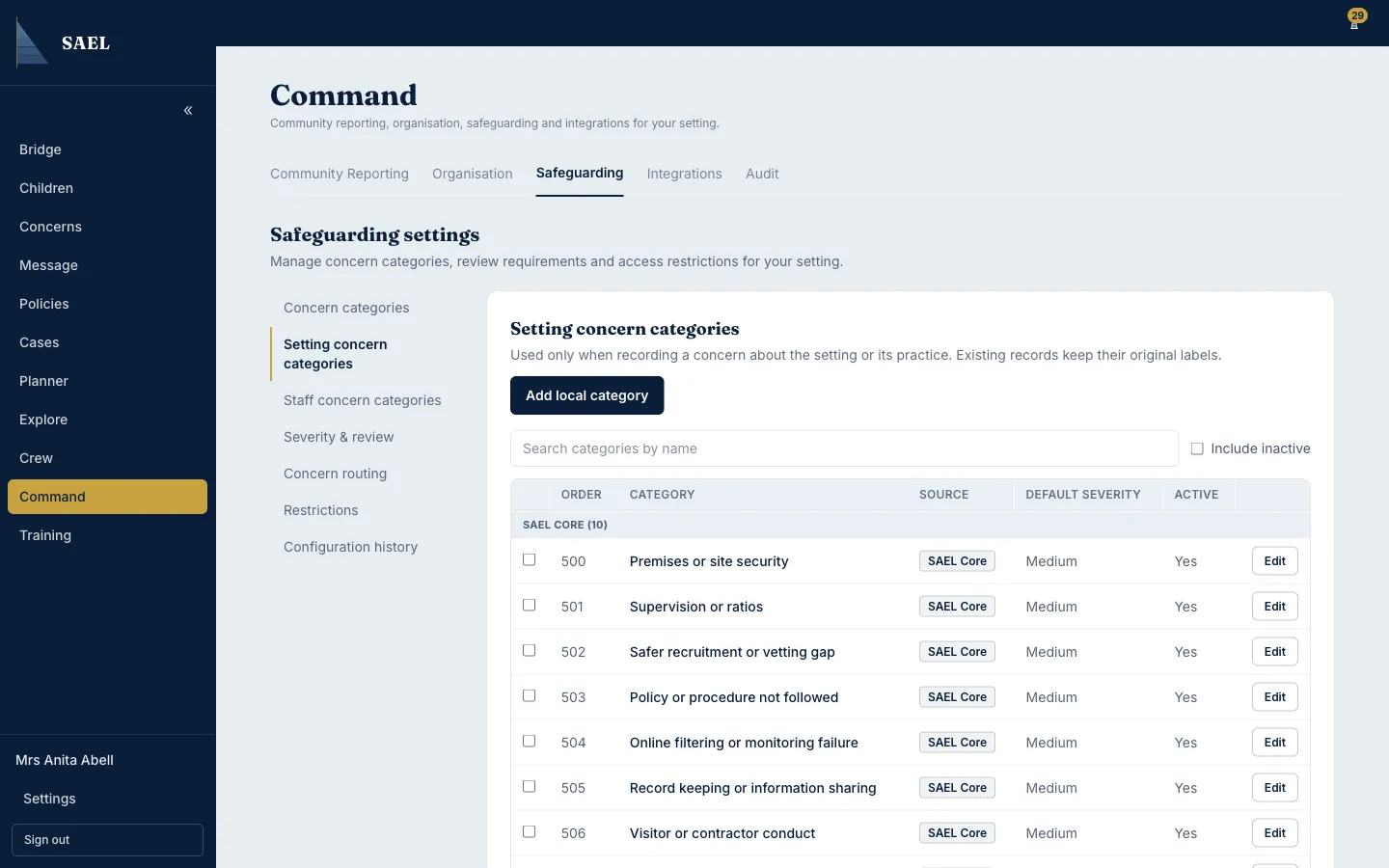
- Setting concern categories for concerns about the setting or its practice.
- Staff concern categories for concerns involving a member of staff. Staff categories have a separate editor; see Configure staff concern categories.
- Review the existing list before adding a new option. The table separates protected SAEL Core categories from local categories created by your setting.
Add a local child or setting category
Section titled “Add a local child or setting category”- Select Add local category.
- In Display name, enter the label staff should see when they log a concern.
- Set Display order. Lower or higher ordering affects where the category appears in the list.
- Enter a Description that explains when the category should be used.
- Choose Default severity: Low, Medium or High.
- Choose the Default restriction level: Standard, Restricted or Highly restricted.
- Under Severities staff may choose, tick the levels staff may select for this category. Ensure the default is among the allowed levels.
- For child categories, set Used for to the correct subject scope. This controls whether the category appears for the relevant kind of concern, including child and/or not-on-roll concerns. The Setting concern categories tab is already scoped to setting/practice concerns.
- Decide whether Requires DSL review should be checked.
- For child categories, decide whether to check Include in the child chronology.
- Check Available to staff when staff should be able to select the category for new concerns. Leave it off if you are preparing the category but do not want it used yet.
- Enter a reason for the change if useful. This field is optional in this editor.
- Select Save category and check the new row in the table.
Edit an existing category
Section titled “Edit an existing category”- Use Search categories by name to find it. Turn on Include inactive if it is not in the active list.
- Select Edit on the row. The editor appears below the table and is labelled Edit category.
- Check whether it is a protected SAEL Core category or a local category. Core categories can be renamed/configured, but they remain identifiable as Core; local categories are specific to your setting.
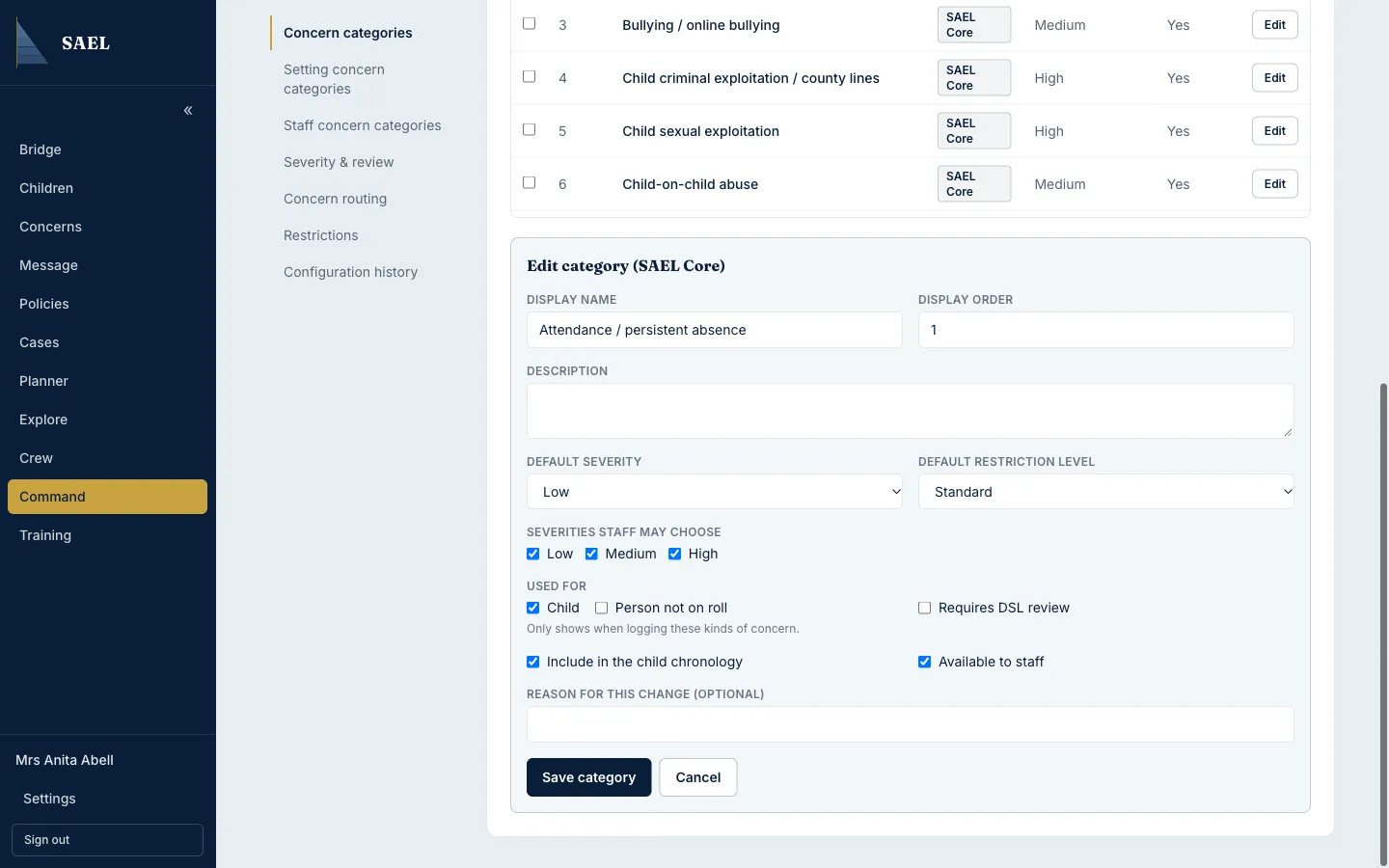
- Update only the fields that need changing. Review subject scope, allowed severities, chronology inclusion and review requirement, not just the display name.
- Select Save category and verify the displayed row.
Make several categories active or inactive
Section titled “Make several categories active or inactive”- Select the checkbox at the start of each category row.
- Select Make active or Make inactive in the selection toolbar.
- Read the confirmation, including the number of selected categories that will actually change and the fact that existing concerns are unchanged.
- Select Confirm to apply, or Cancel to stop. Use Clear selection if you chose the wrong rows.
If you try to deactivate a category used by an active routing rule, SAEL identifies the dependent rule and asks for confirmation. Review the routing rule before proceeding. Deactivation changes availability for new concerns; it does not rewrite historical concern records.