
Manage setting controls and modules
Find Setting controls
Section titled “Find Setting controls”- Open Command.
- Select Organisation.
- Open the Details sub-tab. Do not choose the separate Account & Access sub-tab for these switches.
- Scroll to the Setting controls section.
- Check the Module controls held by line. Only the current named holder (or SAEL support) can change the switches or hand over control. The DSL normally holds these controls unless they have been transferred.
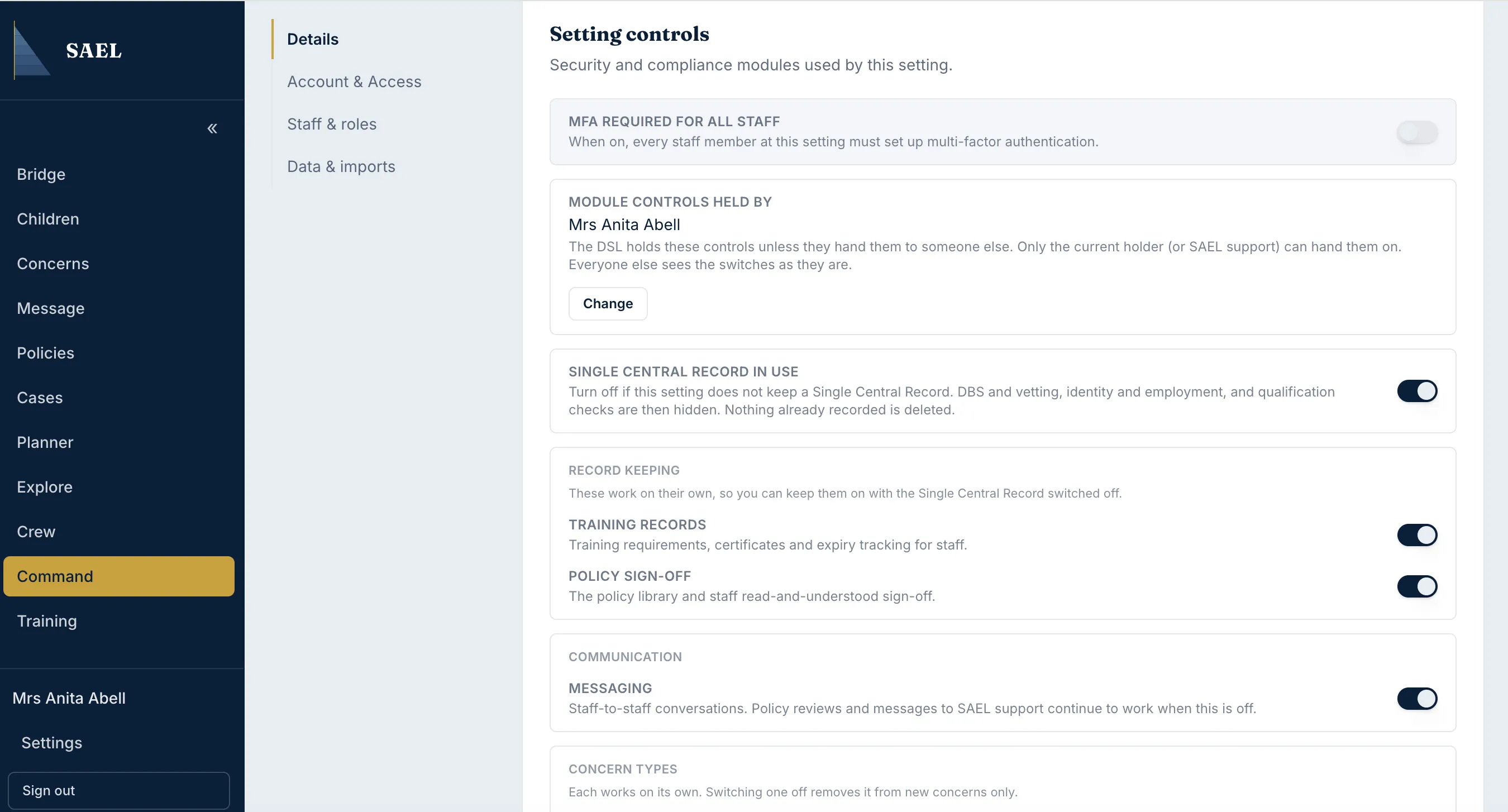
Hand module control to another person
Section titled “Hand module control to another person”- In Module controls held by, select Change.
- Open Choose a person… and select the intended person from the available candidates.
- Check the person’s name and role.
- Select Save.
- Confirm the new holder is displayed. The handover takes the switches away from the previous holder immediately.
Do not use this handover as a routine way to give someone a single permission. It transfers control of the setting’s module switches.
Change a module setting
Section titled “Change a module setting”The setting controller sees switches for these areas, depending on what has been provisioned for the setting:
- MFA required for all staff: when on, every staff member at the setting must set up multi-factor authentication.
- Single Central Record in use: show or hide the SCR/vetting workflow.
- Training records in use: show or hide setting training requirements and staff training tracking.
- Policy sign-off in use: show or hide the policy library and staff read-and-understood sign-off.
- Messaging in use: control general staff-to-staff conversations.
- Staff safeguarding in use: control the staff safeguarding module.
- Setting or practice concerns: make this concern subject available for new concerns, if provisioned.
- Not on roll concerns: make the external/not-on-roll subject available for new concerns, if provisioned.
To change a switch, locate the named setting and use its toggle. Wait for the save confirmation before moving to another control. If a lock note appears, it identifies that the control has been locked by SAEL; setting users cannot override it.
Understand the impact before switching off
Section titled “Understand the impact before switching off”Switching a module off does not delete information already recorded. It can hide the relevant workflow and stop new records or new use of that feature. The switches are independent: for example, Training can remain enabled while the SCR is disabled.
Turning general Messaging off does not disable policy review messages or messages to SAEL support. Switching off a concern subject affects new concern creation; existing concerns remain and can still be opened. Check the impact description next to each switch before changing it.
Account & Access is different
Section titled “Account & Access is different”The separate Account & Access sub-tab shows account status, access period and billing/access dates. The app explains that access periods and invoices are managed manually by SAEL; contact SAEL to extend or change an access period. It is not where the feature-module toggles live.