
Create and complete actions from a concern
Add an action to a concern
Section titled “Add an action to a concern”- Open Concerns and select the concern that needs follow-up.
- Check that you have completed the initial review if the concern’s Notes and Actions controls are locked. SAEL requires initial review before these sections can be used.
- Open the Actions tab or section in the concern record.
- Select the action to add a new action.
- Enter the Action title. Make it specific and outcome-focused, so the assignee knows what needs to happen.
- Add a description if more context is needed.
- Choose an assignee where the field is available.
- Set a due date/deadline where requested. Make sure it reflects the urgency and the actual safeguarding plan.
- Review the action and select the save/submit control.
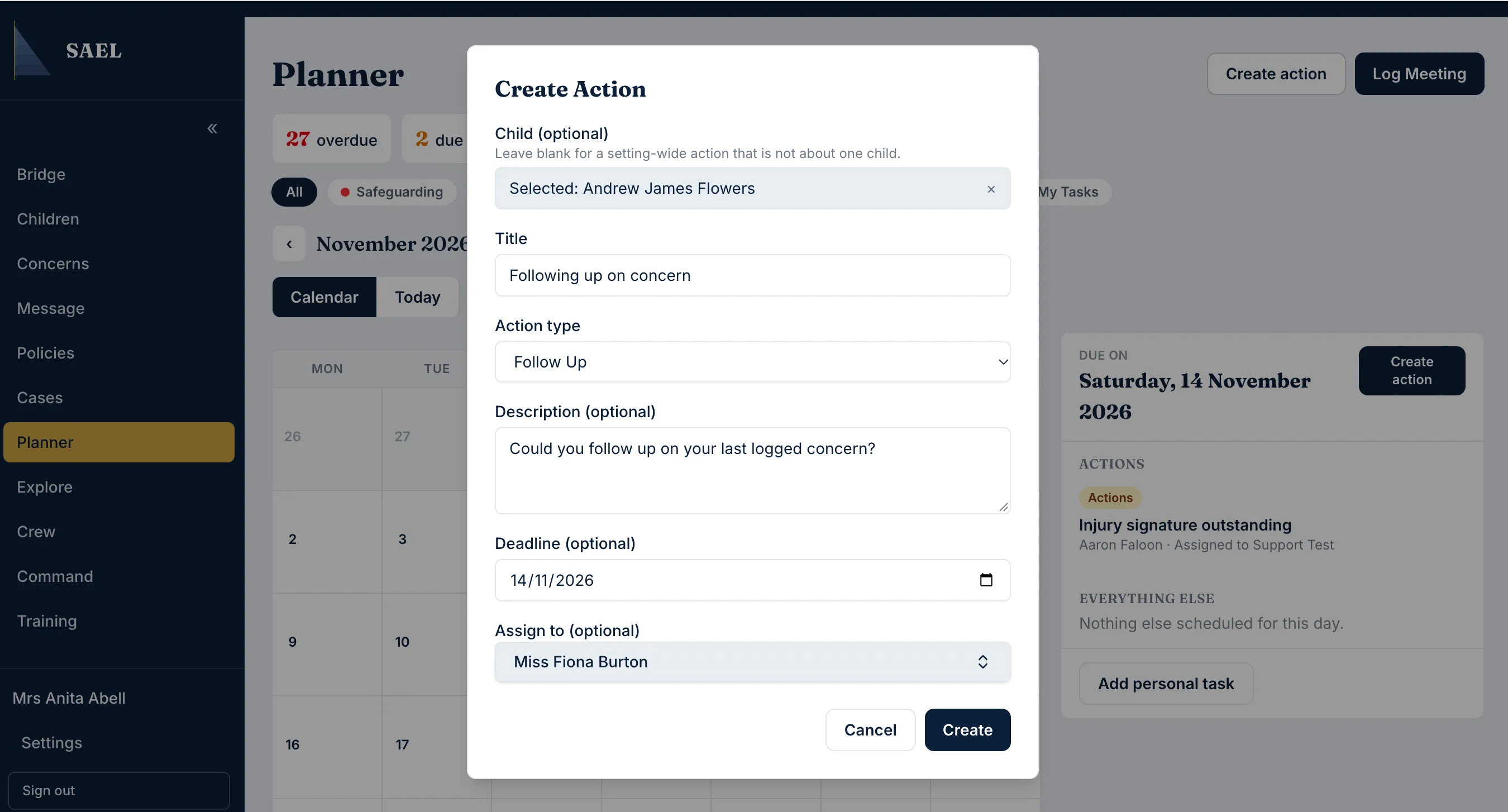
- Check that the action appears in the concern’s Actions list with the expected owner and due date.
Complete an action
Section titled “Complete an action”- Open the concern and return to its Actions section.
- Find the action that has been completed.
- Check that the correct task has been carried out and any evidence or outcome is recorded in the appropriate part of the record.
- Select the action’s completion control.
- Check that the status changes to completed.
Actions are follow-up records, not a replacement for documenting the concern itself. Do not mark an action complete simply because it has been assigned or discussed. There is no separate standalone Actions page — you reach an action through the concern it belongs to, or through dashboard links.