
Manage documents on a child record
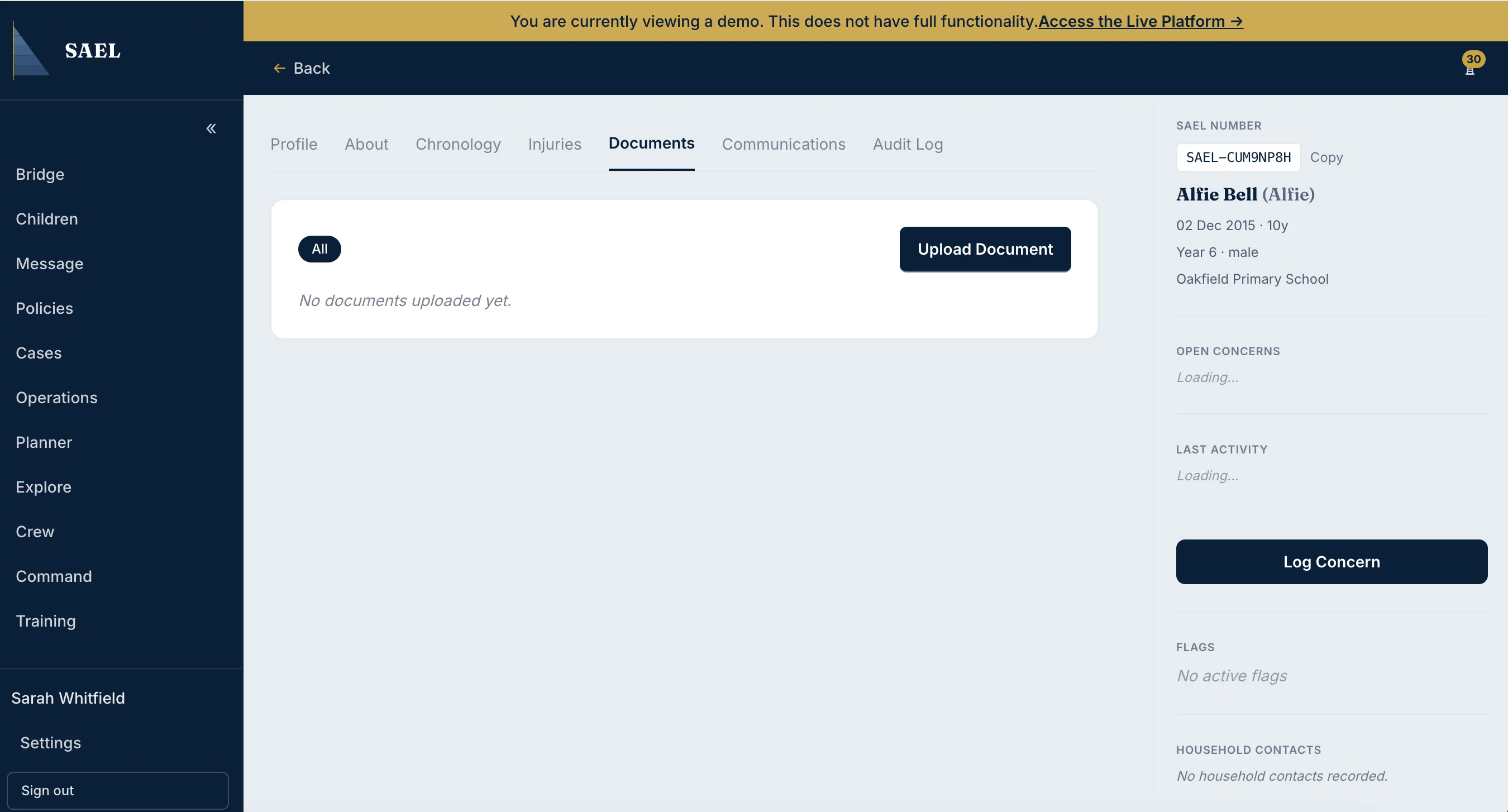
Open the child’s document list
Section titled “Open the child’s document list”- Open Children and find the child using the search and filters.
- Select the child’s row to open the child record. Check the child’s name and SAEL number in the record header.
- Select Documents from the child record tabs. On a smaller screen, some record information may be inside the Child Info panel; use the record’s tab navigation to return to Documents.
- Use the category filter to narrow the list if the record contains several documents.
- Select a document to open it. Use the document’s download action when you need a local copy for an authorised purpose.
Pin a document as Featured
Section titled “Pin a document as Featured”Where you have document-edit permission, use the document’s Featured or pin control to highlight a document that colleagues should be able to find quickly. Check that it is current and genuinely useful as a key reference before featuring it. A Featured marker is a navigation aid, not a replacement for checking the document’s date and status.
Upload or remove a child document
Section titled “Upload or remove a child document”Use the upload action from the Documents tab and complete the file, title and category fields. Check the child record association before saving. If you have permission to remove a document, use its remove action and read the confirmation. Removal should not be treated as a substitute for correcting a document that was attached to the wrong child; follow your setting’s correction procedure and contact SAEL support if the record needs recovery.
Users with the appropriate administrative access may be able to view deleted documents. If a document appears to have disappeared, check filters and the relevant deleted-document view where available before assuming it has been permanently erased.