Log a concern about a child
Before you open the form
Section titled “Before you open the form”If a child is in immediate danger or needs urgent protection, follow your setting’s emergency and safeguarding procedures first. SAEL is a record-keeping and workflow tool; it is not an emergency service and submitting a form must not delay action.
Start the concern
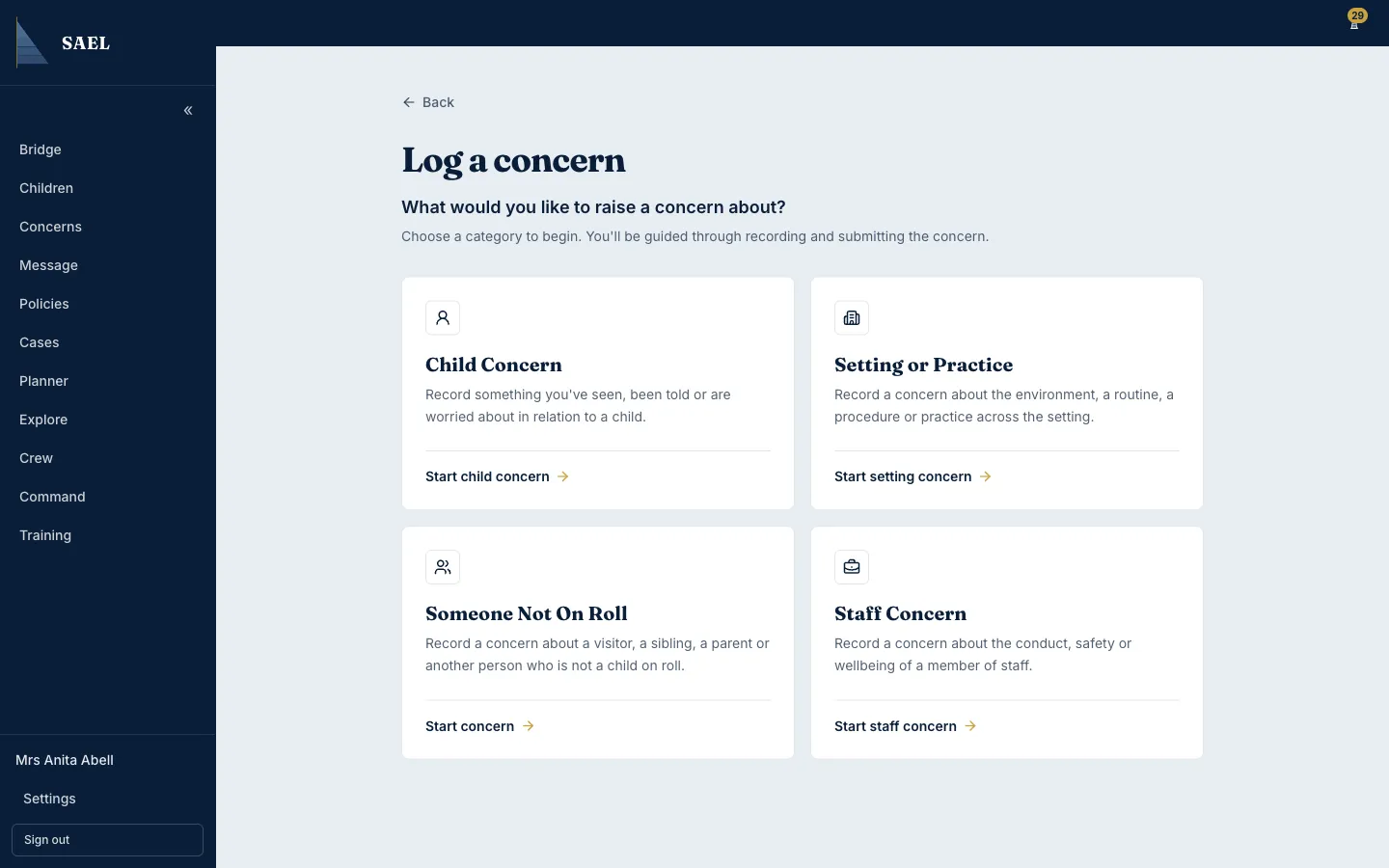
Section titled “Start the concern”- Select Log a Concern from the main navigation or use the button on the Concerns page.
- On the concern-type screen, choose Child Concern.
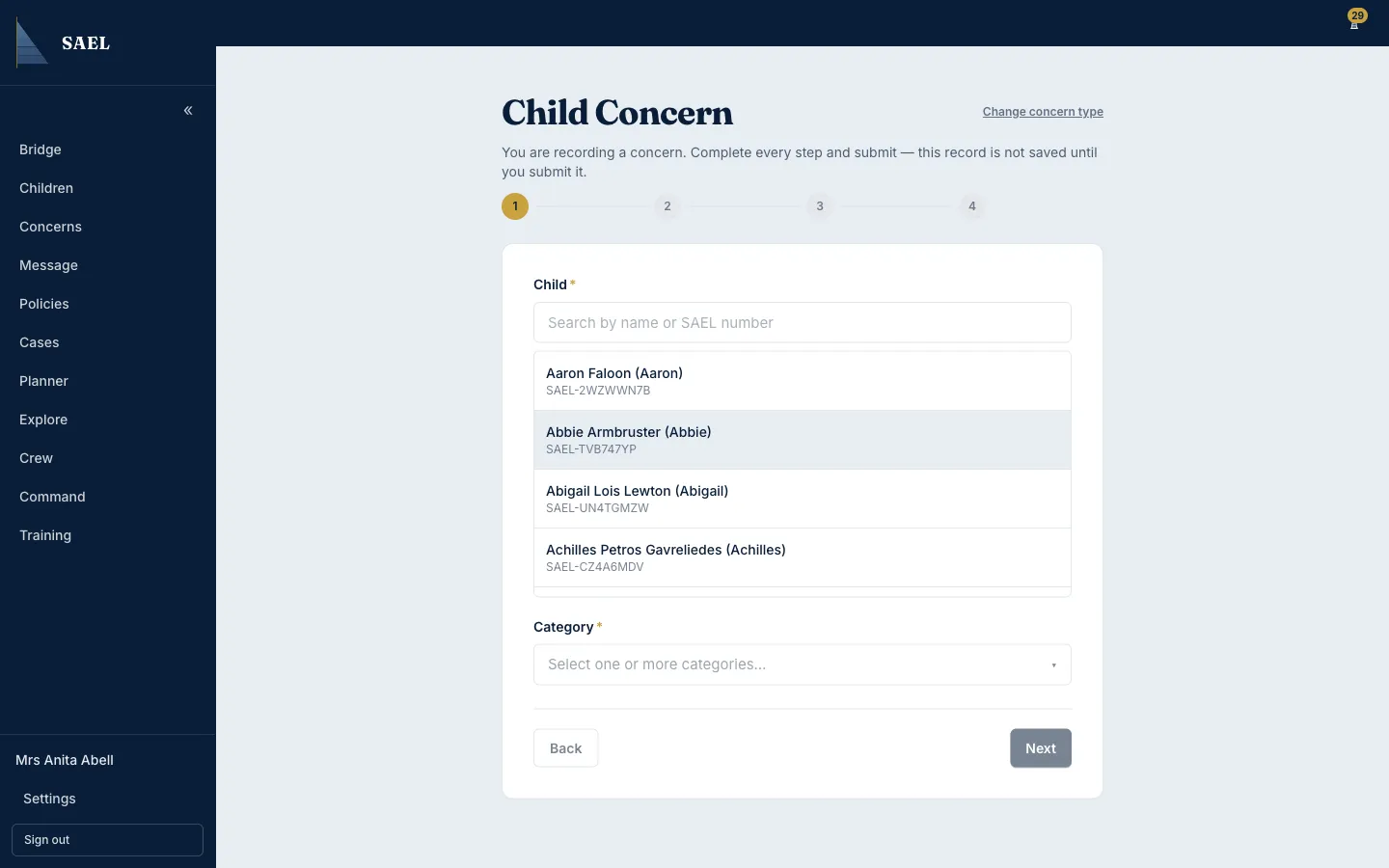
- In the child picker, search for the child by name. Select the correct result and check the identity before continuing.
- Choose the concern category from the list available to your setting.
 5. Complete the concern description. The description must contain at least 20 characters. Write what was seen, heard or disclosed, using the person’s own words where appropriate. Separate fact from interpretation.
6. Enter the date of the incident or disclosure. Add the time and location when known; do not guess where information is unavailable.
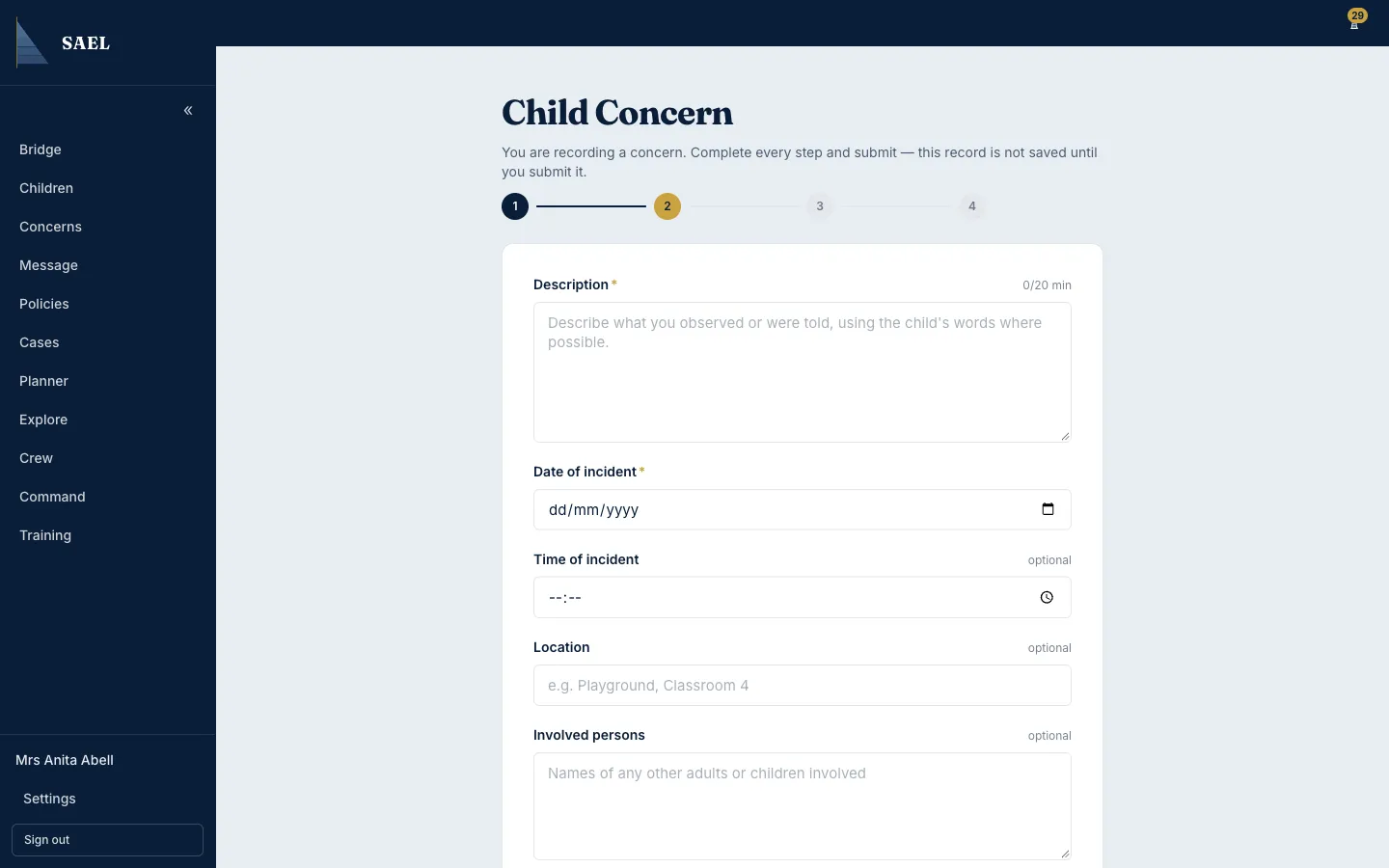
- Add the other people involved where the form asks for them. Include only people relevant to the event.
- Complete the urgency or priority choice. Use the urgent option when the situation warrants it; do not use urgency as a substitute for contacting the DSL or emergency services.
- Answer any additional safeguarding questions shown to you, including whether the concern involves an allegation against a staff member.
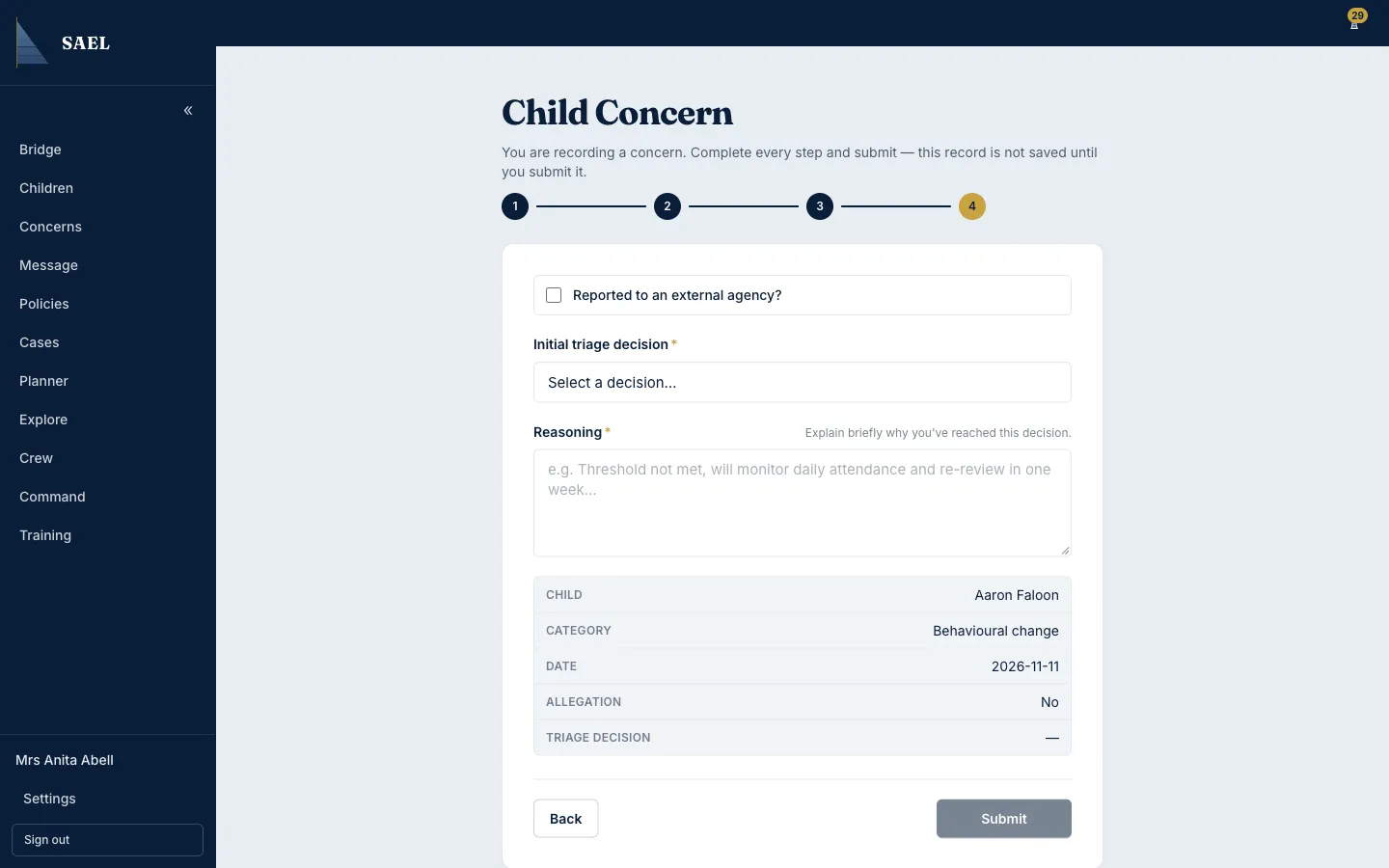
- Review the information shown in the final review stage. Check the child, category, date and description carefully.
- Select the final submit action. Until you submit, the concern has not been saved as a submitted concern.
- Wait for the confirmation and open the new concern if you need to check its reference or status.
Staff and DSL screens are different
Section titled “Staff and DSL screens are different”The normal staff workflow is shorter. A DSL-tier user may see additional external-reporting and initial-triage fields. Complete the fields that appear for your role; do not assume that a colleague’s screen will be identical.
If the form asks about a Duty to Report matter, read the Duty to Report prompt guidance. The prompt does not replace the setting’s reporting process.
If you cannot find the child
Section titled “If you cannot find the child”Do not choose a similar-looking child. Check spelling and the register filters, then ask the DSL to confirm the correct record. If you are logging offline, the offline form can use the cached child roster only where secure browser storage is available.