
Send a policy for staff review
Send a policy to staff
Section titled “Send a policy to staff”- Open Policies and find the policy you want staff to review.
- Confirm that the uploaded document is the correct current version and that its review date is accurate.
- Open the policy row’s More actions menu.
- Select Send for review. SAEL displays a confirmation panel so you can check the action before it is sent.
- Read the confirmation and select the send/confirm action.
- Where the individual-recipient option is used, choose Send to one staff member, search by staff name and select the correct person.
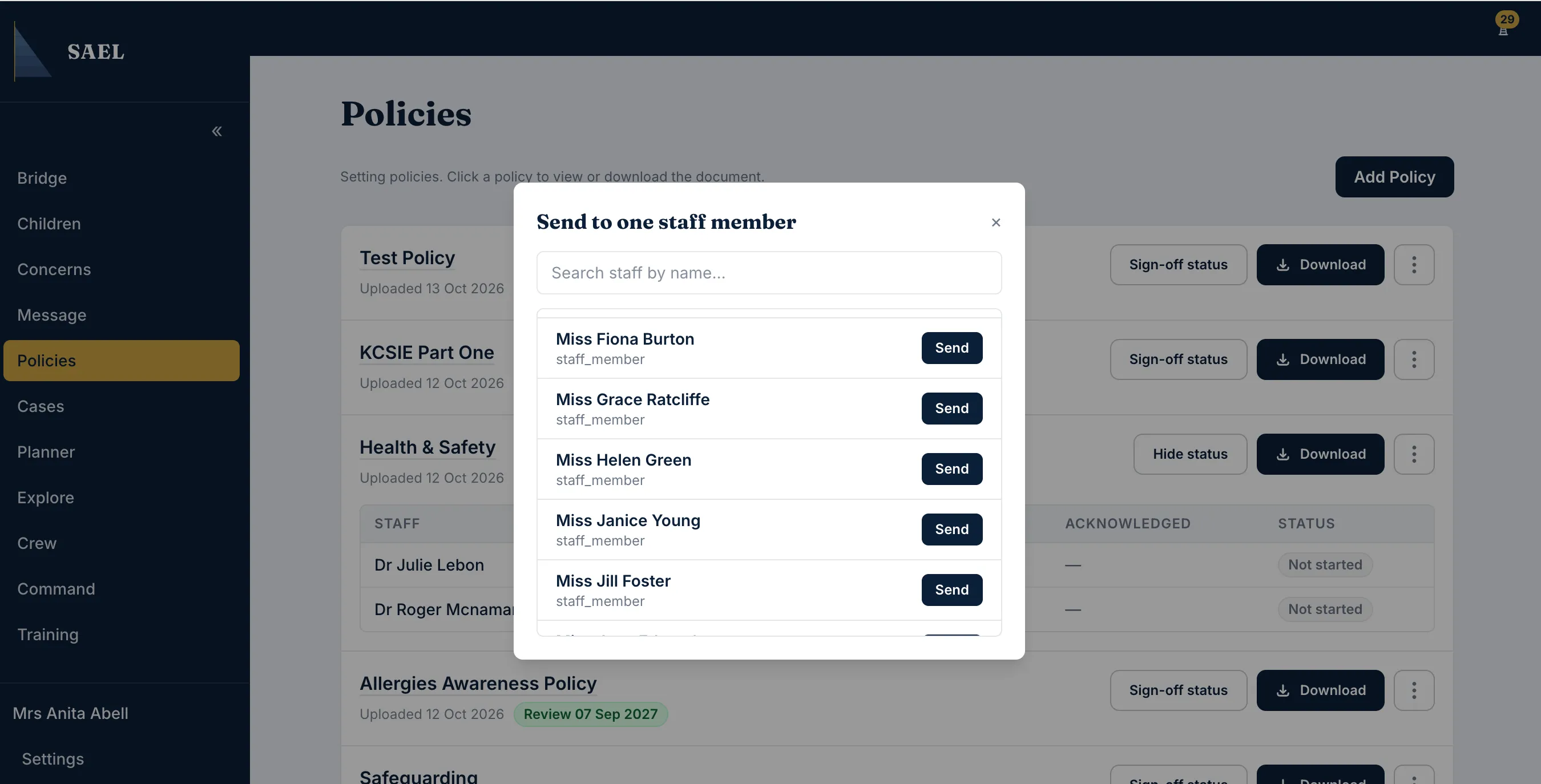
- Confirm the recipient and send. The policy review will be associated with that staff member.
- Check the policy’s review/sign-off information afterwards. Do not assume that selecting Send for review means every member of staff has acknowledged it.
The policy review workflow is separate from general staff-to-staff messaging. Turning off general Messaging does not disable policy reviews. Staff need to open and acknowledge the policy through the policy review workflow; follow up with anyone whose acknowledgement remains outstanding.