
Understand the Organisation settings area
Open Organisation
Section titled “Open Organisation”- Open Command from the navigation.
- Select Organisation.
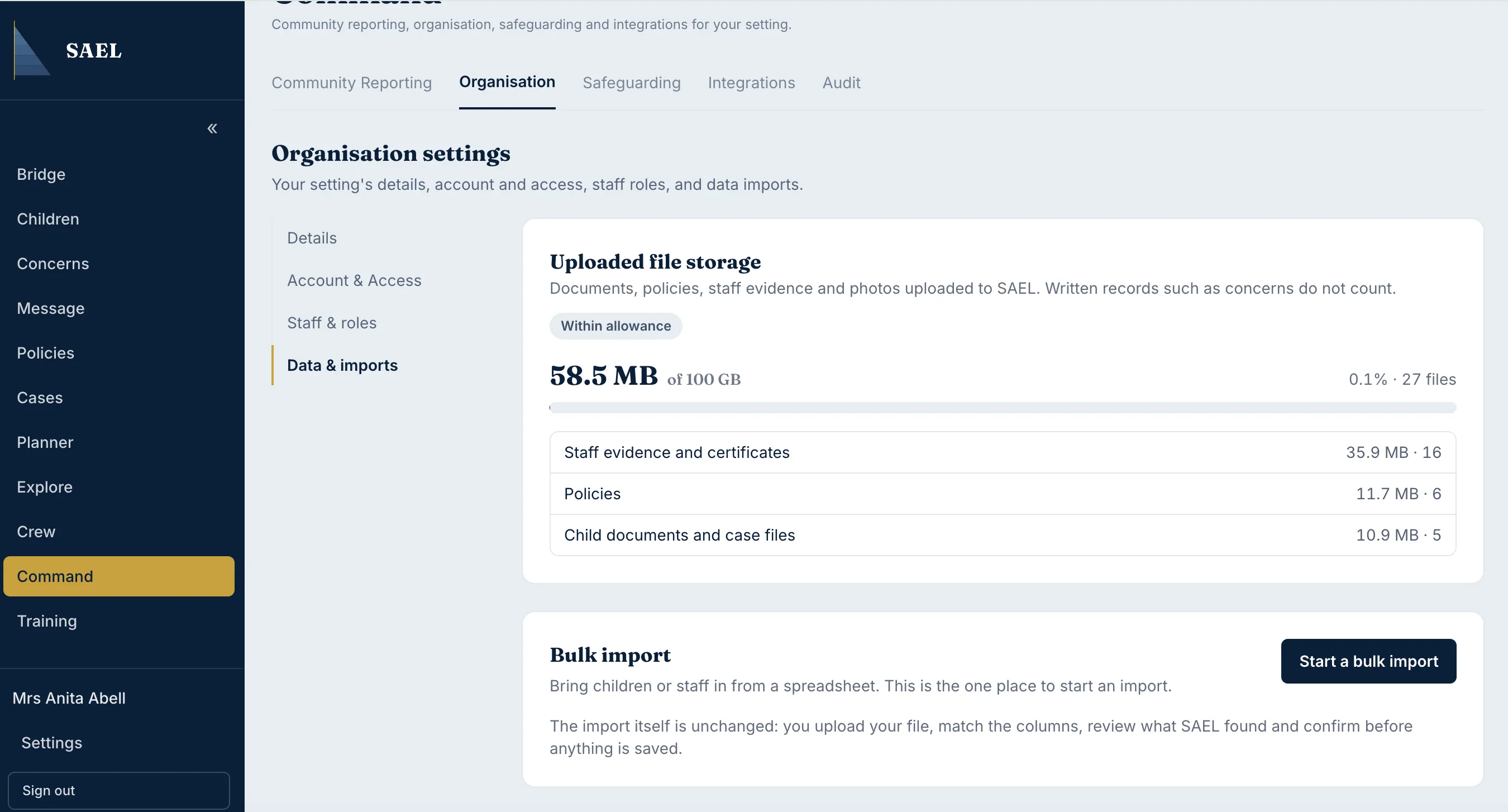
- Review the four sub-tabs: Details, Account & Access, Staff & roles and Data & imports.
Details: check setting identity and controls
Section titled “Details: check setting identity and controls”The Setting Details card displays your setting name, SAEL ID and official identifiers such as the relevant registration or setting reference. The setting name is held as recorded at sign-up; it is not edited directly from this card.
- If your setting is self-managed, select Request a correction to open the support form when the setting name or an official identifier needs correcting. Describe exactly which detail is wrong and what it should be.
- If the card says the setting is managed by a trust or group, contact that trust/group to update the details. The page is read-only for your setting.
- For a Canadian setting, the Province / territory field can be changed from the dropdown. Select the correct province/territory and then select Save. Wait for the confirmation that the province/territory was updated.
The Details tab also contains setting-wide Setting controls, including MFA, compliance modules and concern types. These are covered in Manage setting controls and modules.
Account & Access: view account status
Section titled “Account & Access: view account status”Select Account & Access to review the account’s status, trial/access dates, billing status and whether the setting is active. An expired-access warning may appear when the access period has passed.
The page states that access periods and invoices are managed manually by SAEL. Contact SAEL to renew or extend access; the sub-tab is a status view, not a self-service billing editor.
Staff & roles: invite people and design access
Section titled “Staff & roles: invite people and design access”Select Staff & roles. Use Invite Staff Member in the Staff accounts card to create a new invitation. Below that, use Roles & permissions to review setting roles, create a custom role and assign people to it.
Data & imports: start an import
Section titled “Data & imports: start an import”Select Data & imports. Review storage information and select Start a bulk import to bring children or staff in from a spreadsheet. The importer has a final review stage before records are saved.
If one of the sub-tabs is missing, check your role and setting permissions. Do not assume that a missing control means the setting data has been deleted.