
Manage Duty to Report contacts
Who can use this setting
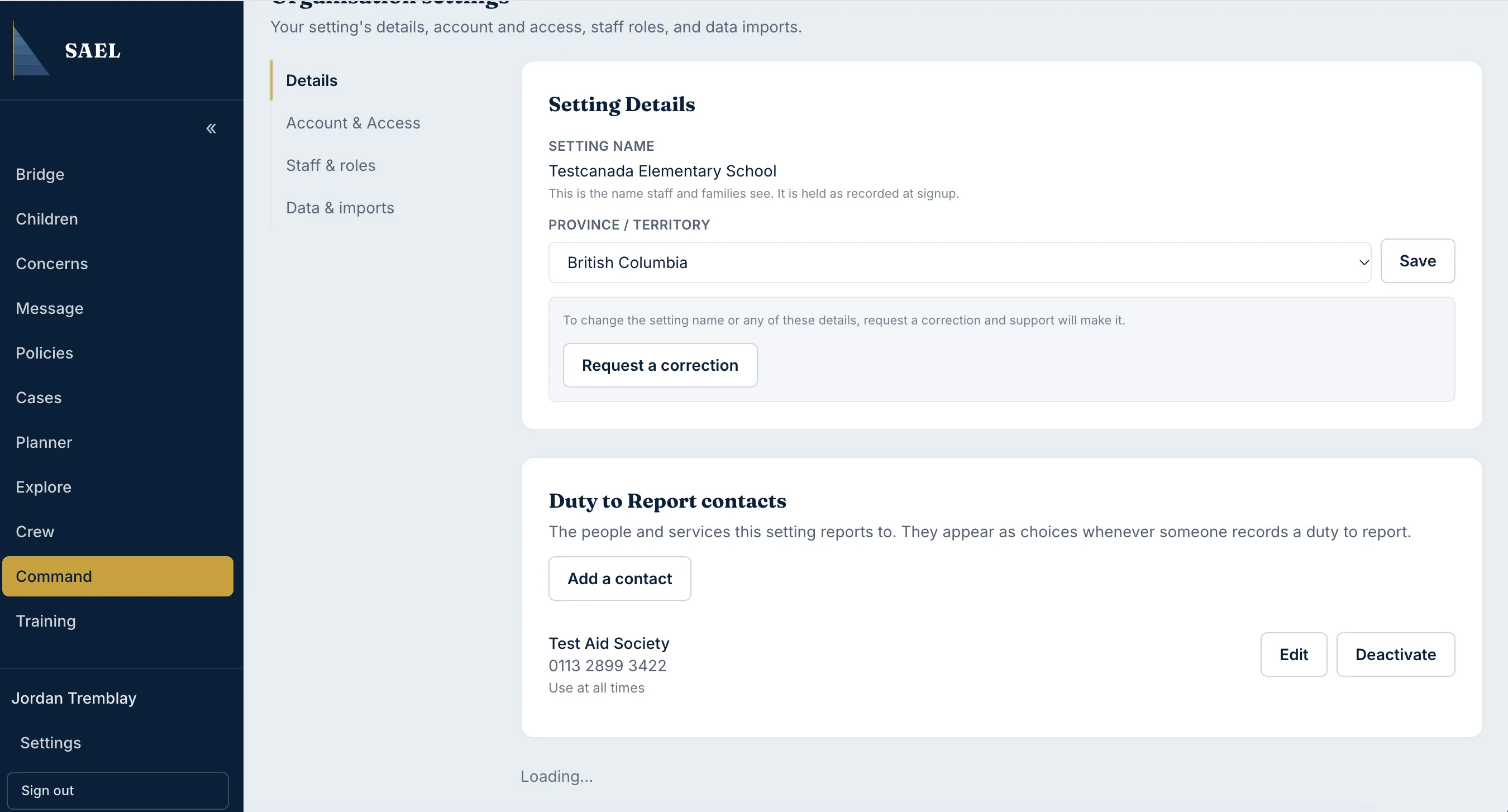
Section titled “Who can use this setting”This panel is shown only for fully configured Canadian settings. Open Command → Organisation → Details and find Duty to Report contacts. It is not a general UK contact directory.
Add a contact or service
Section titled “Add a contact or service”- Select Add a contact.
- In Name of contact or service, enter the name staff should recognise, such as the relevant child-protection intake service.
- Enter a Phone number if one is useful.
- Enter Notes to explain when to use the contact, its hours or other practical information staff should know.
- Select Add contact.
- Check that the new contact appears in the list and that its name and phone number are correct.
If there are no saved contacts, staff can still type who they contacted when recording a report. Adding contacts makes the approved contact options easier to find; it does not replace staff judgement about who must be contacted in a particular situation.
Edit a contact
Section titled “Edit a contact”- Find the contact in the list.
- Select Edit.
- Update the name, phone number or notes.
- Select Save changes.
- Check the updated information appears in the list.
Make a contact inactive or active
Section titled “Make a contact inactive or active”Use the contact’s Deactivate or Activate control, depending on its current state. Deactivation does not delete the contact. Historical Duty to Report entries retain the contact they referred to, so use inactive status for a service that should no longer be offered rather than trying to erase its past use.
Keep phone numbers and service guidance current. Review this list whenever local safeguarding contacts or referral routes change.