
Send and reply to messages
Start a new message
Section titled “Start a new message”- Open Messages from the main navigation.
- Select New Message.
- In the recipient search field, type a colleague’s name and wait for the search results.
- Select the intended recipient. Repeat to add other recipients where appropriate.
- Check the recipient chips/list. Remove anyone who should not receive the message.
- Enter the subject and message text.
- Re-read the recipients, subject and content. Do not include child or staff safeguarding information unless every recipient is authorised to receive it and the message is the appropriate channel.
- Select Send.
- Confirm the conversation appears in your message list.
Reply to a conversation
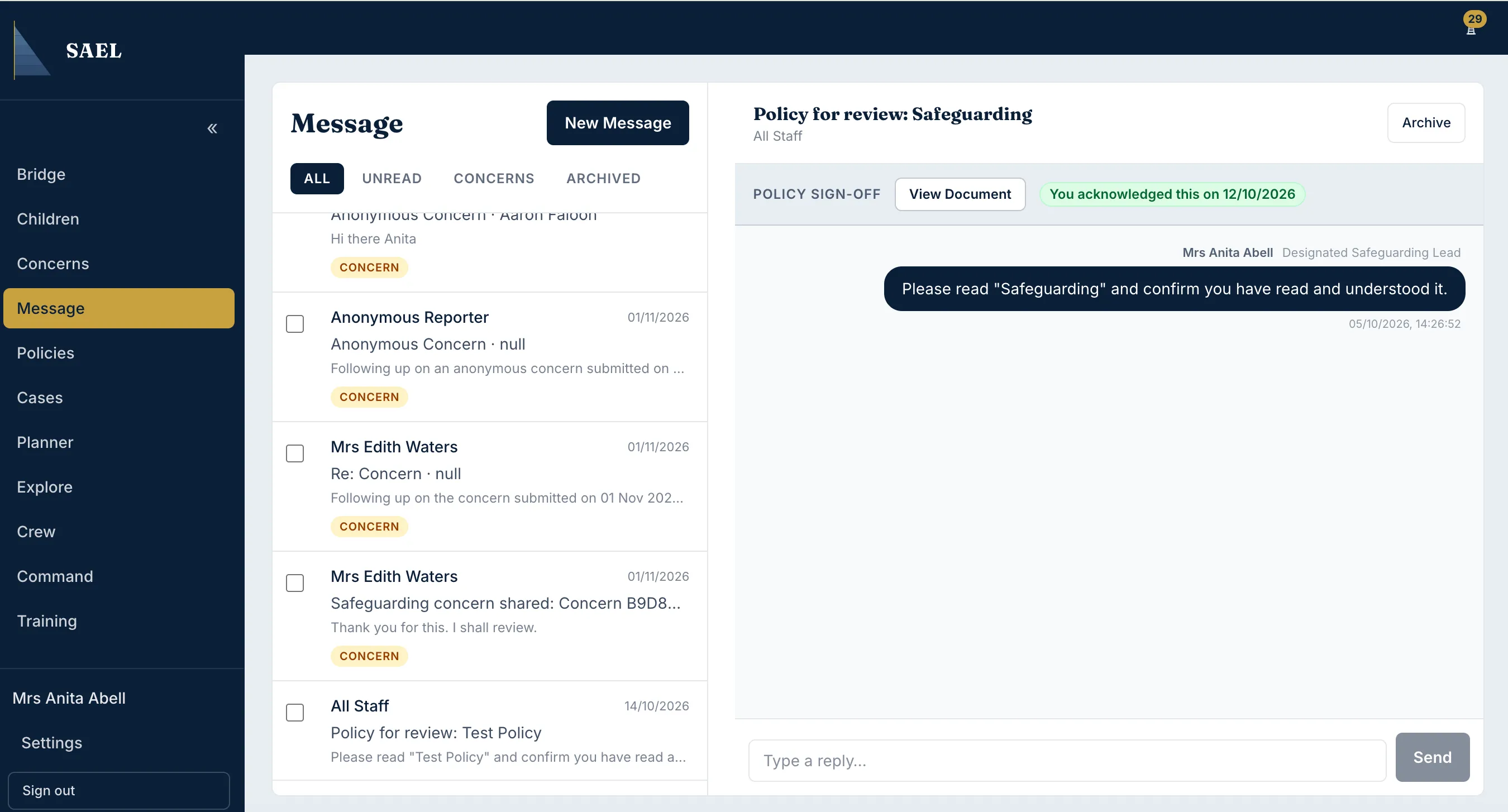
Section titled “Reply to a conversation”- Open the message thread from the list.
- Read the earlier messages so your reply has the correct context.
- Enter your reply in Type a reply….
- Where offered, use Email the recipient even if their email notifications are off only when you need to send an email notification despite that person’s saved notification preference. This does not change the underlying message content or permission to see it.
- Select the send/reply button.
- Confirm your reply appears in the thread.
Manage the message list
Section titled “Manage the message list”Use the list filters to switch between message states. Select a conversation to open it. You can pin a thread for easier access and archive or unarchive it using the thread actions. Selecting multiple conversations exposes bulk actions, including archive. Archiving a thread organises your list; it is not the same as deleting a safeguarding record.
Acknowledge a policy or document request
Section titled “Acknowledge a policy or document request”Some messages contain an item that needs to be opened or acknowledged. Open the linked document/request and use the acknowledgement control shown in that message. Check for the acknowledgement confirmation rather than assuming that reading the message alone completes the task.
Messages versus Communications
Section titled “Messages versus Communications”Messages is for conversations between SAEL users. The Communications tab on a child record is a structured log of contact/communication about that child (for example, direction, channel, sender, recipient and message details). Use the child Communications tab when you need a record entry in the child’s history, not merely a private chat with a colleague.