
Update a child profile
Open the right child
Section titled “Open the right child”- Open Children and search by the child’s name or use the filters to narrow the list.
- Open the child’s row and confirm the name and SAEL Number at the top of the profile.
- If SAEL displays Access Reason Required, enter a clear work-related reason for accessing the record and continue. This is an access-control step, not an optional note.
Review the profile before editing
Section titled “Review the profile before editing”The child record has separate areas for core profile information and additional information. Use the relevant section rather than adding new information as an unrelated chronology note. Depending on your permissions, you may be able to update details such as preferred name, demographics, address, GP, contact information, health needs, medication, medical alerts, collection information, statutory status, key people, legal orders or other pastoral information.
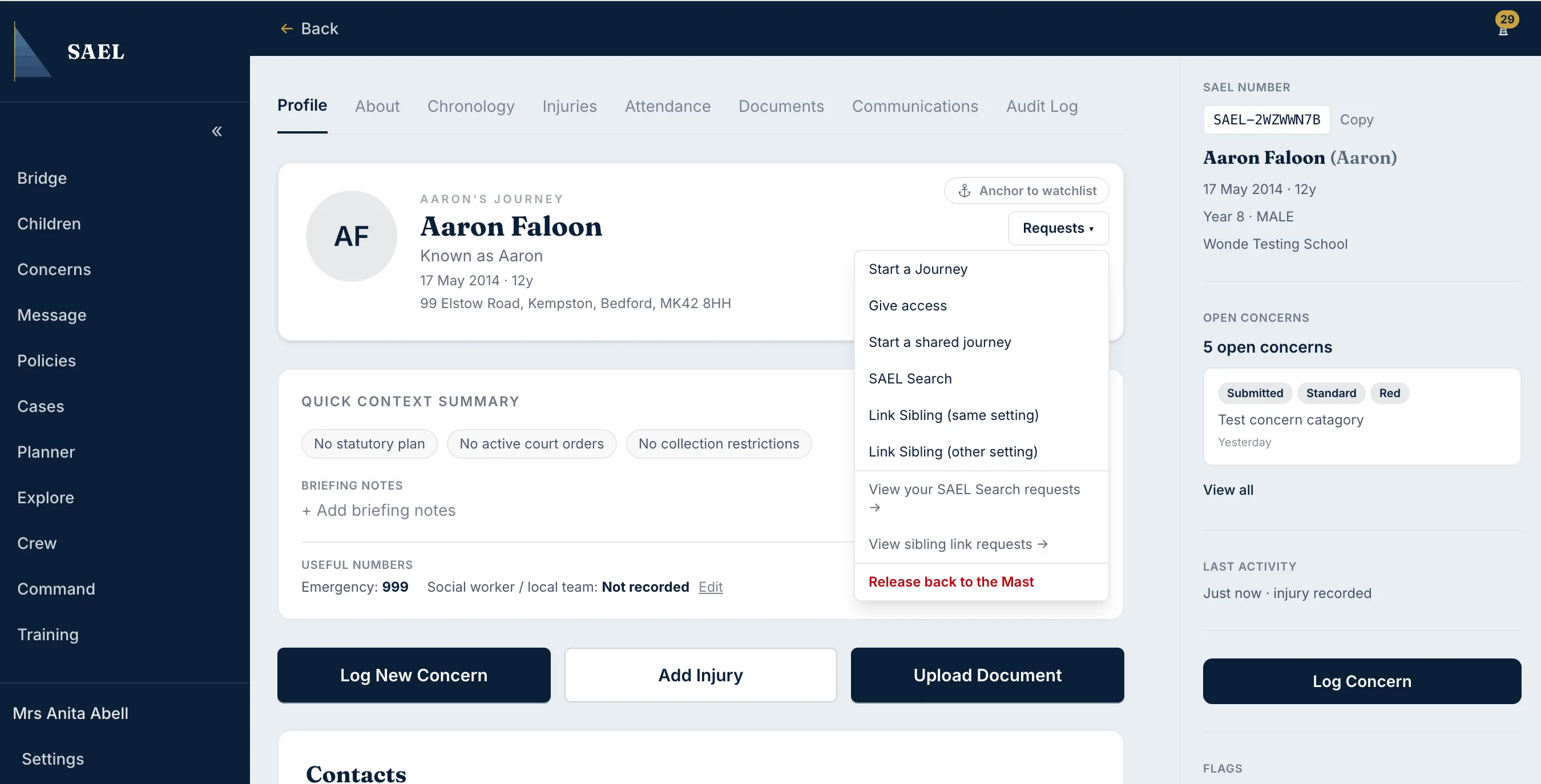
- Open the relevant profile area or tab.
- Use the edit control in the relevant card or section.
- Change only the fields that need correcting. Keep dates and factual descriptions precise.
- Save the change using the save control in that editor.
- Re-open or refresh the section and confirm the updated information is displayed correctly.
Keep a clear record of significant changes
Section titled “Keep a clear record of significant changes”For safeguarding-critical changes, make sure the information is entered in the correct structured field and that the supporting event or decision is recorded in the chronology where appropriate. The application records amendments to certain safeguarding data. Do not overwrite historical events to make the record look as though the new information was always present.
If a field is read-only or you cannot see an edit option, your account may not have permission for that type of information. Ask the DSL or setting administrator to review your access.