
Raise a support ticket
Open the support form
Section titled “Open the support form”- Sign in to SAEL.
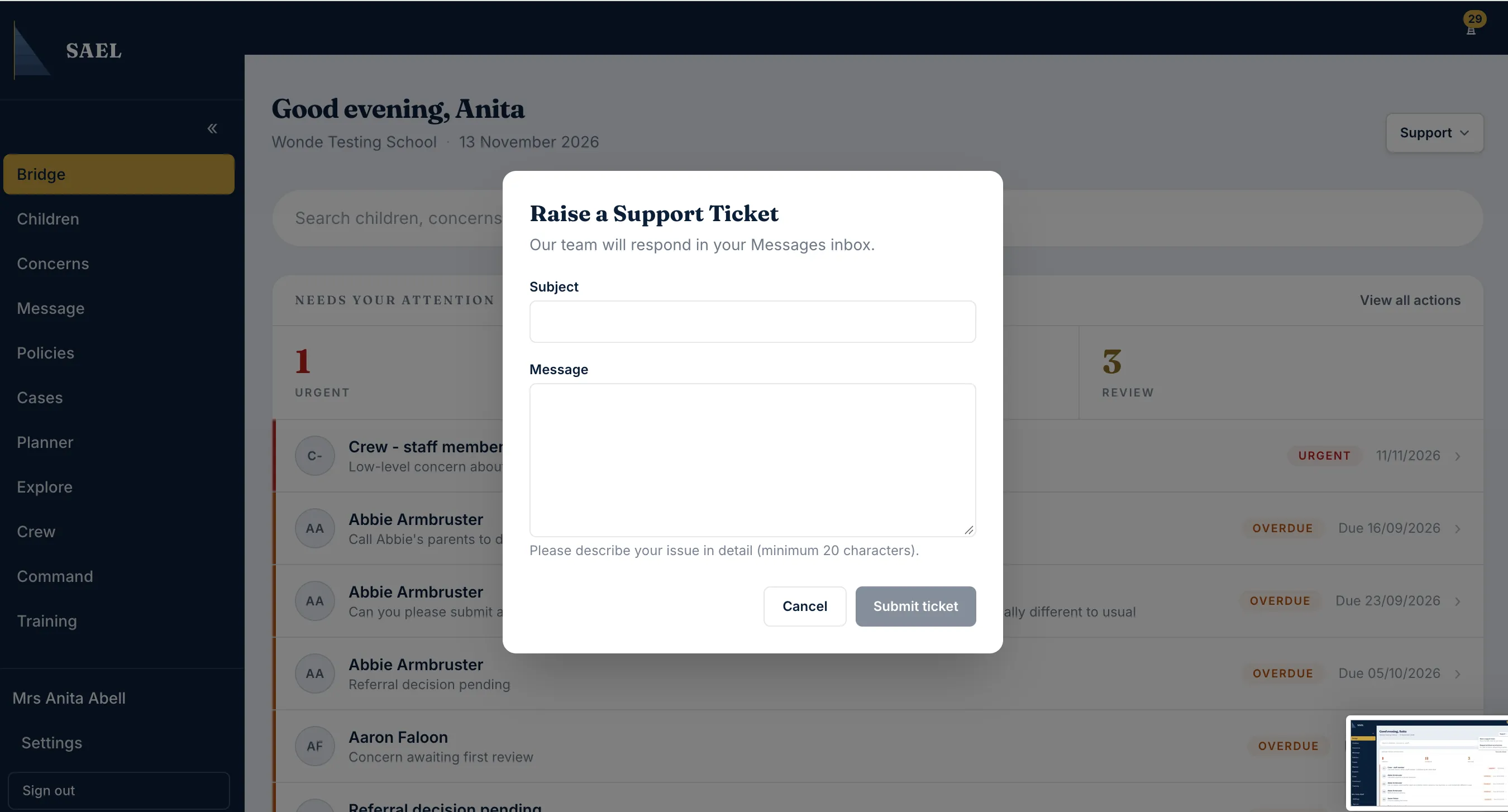
- Open the Support menu or select the Raise a support ticket control shown in the app (it may also be available from the dashboard).
- Select Raise a support ticket to open the form.
- Enter a short, specific Subject. For example, name the screen and the issue rather than writing only “Help”.
- In the message/body field, describe what you were trying to do, the steps you had already taken and what happened instead. The message must contain at least 20 characters.
- Include the name of the relevant screen or record type. Do not paste passwords, authentication codes or unnecessary sensitive child information into the ticket.
- Review the subject and description, then submit the ticket.
- Check Messages for the support conversation and subsequent response from SAEL.
Help SAEL investigate the issue
Section titled “Help SAEL investigate the issue”Where useful, provide the approximate time the problem happened, the browser/device, the error text and the steps that reproduce it. If the issue concerns a particular record, identify it using the minimum information needed for SAEL to locate it securely. Do not send a child safeguarding narrative in a general support ticket unless the support process specifically requests it through an appropriately controlled route.
A support ticket is not an emergency safeguarding reporting route. If a child or person is at immediate risk, follow your setting’s emergency and statutory safeguarding procedures first. Do not wait for a response from SAEL support.