
Use the staff compliance overview
Open Crew and understand the overview
Section titled “Open Crew and understand the overview”- Open Crew from the main menu.
- Select the Staff tab if it is not already selected.
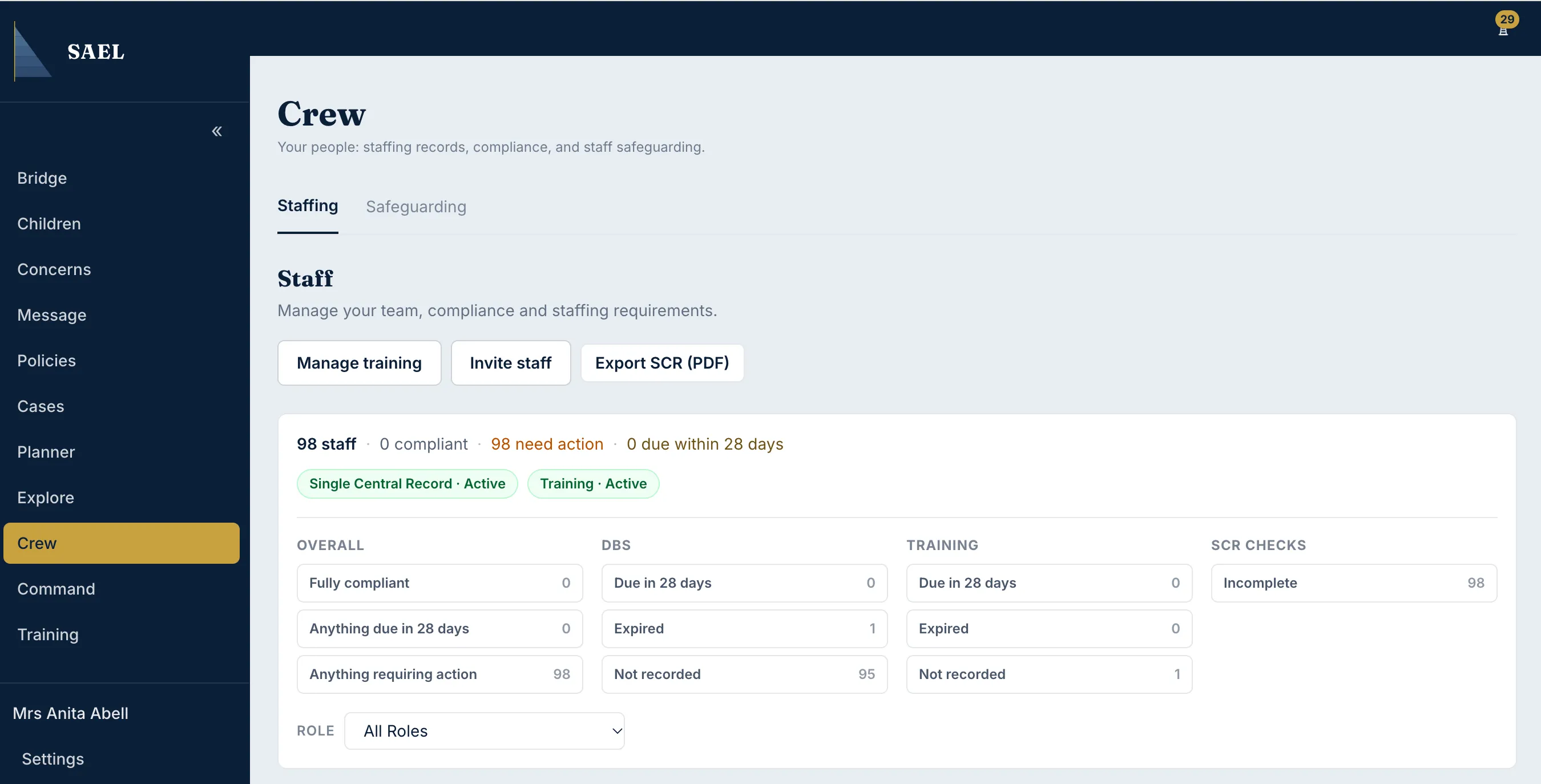
- Review the summary at the top. It shows the number of staff and, when compliance modules are active, how many are compliant, need action or have items due within 28 days.
- Check the module indicators for Single Central Record and Training. If a module is marked Not active, its records are retained but excluded from the current compliance totals.
Find a staff member
Section titled “Find a staff member”- Use Search staff by name to find the person.
- Use the Role dropdown to show a particular role, or leave it on All roles.
- Use the filter controls to narrow the list by overall status, DBS, training or checks. Examples include due within 28 days, expired, missing or not recorded.
- On a mobile screen, open Filters to show the same controls.
- If the filters hide the person you expect to see, select Clear all and repeat the search.
- Select the staff member’s row to open their individual compliance record.
Read the staff row
Section titled “Read the staff row”The row can show DBS status, the number of checks complete, training completed versus required, and an overall state such as Needs attention, Due soon or Compliant. Do not treat the overall label as a substitute for reviewing the underlying check and evidence.
Export the Single Central Record
Section titled “Export the Single Central Record”When the SCR module is active and you have the necessary access, select Export SCR (PDF) (Canadian settings may use the label Export screening record (PDF)). Save the file to an approved secure location and check the export before using it for an inspection or formal review.