
Record an injury
Record an injury while online
Section titled “Record an injury while online”- Open Children and select the correct child.
- Confirm the child’s identity and SAEL Number.
- Open the Injuries tab or the injury-recording control available from the child record.
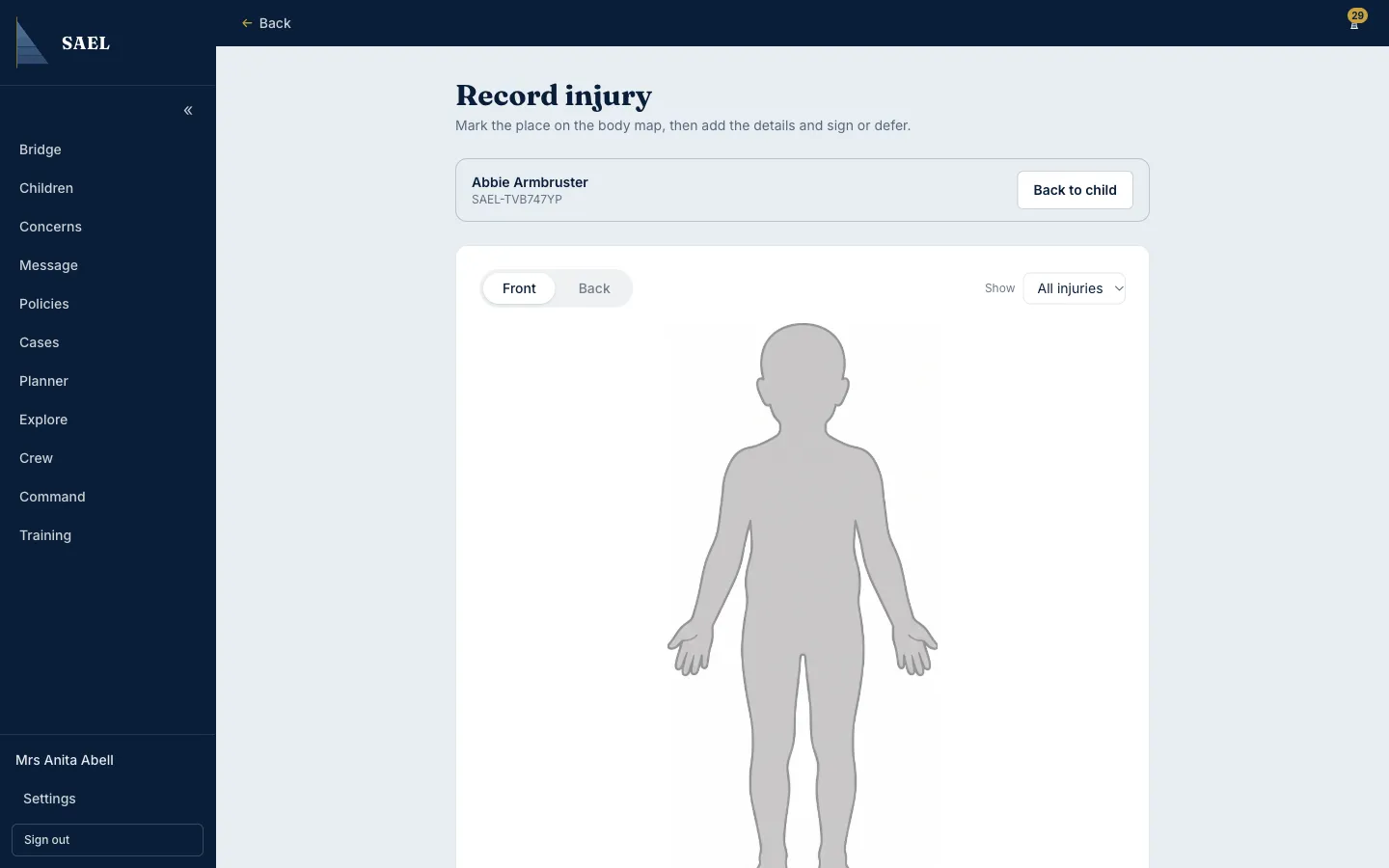
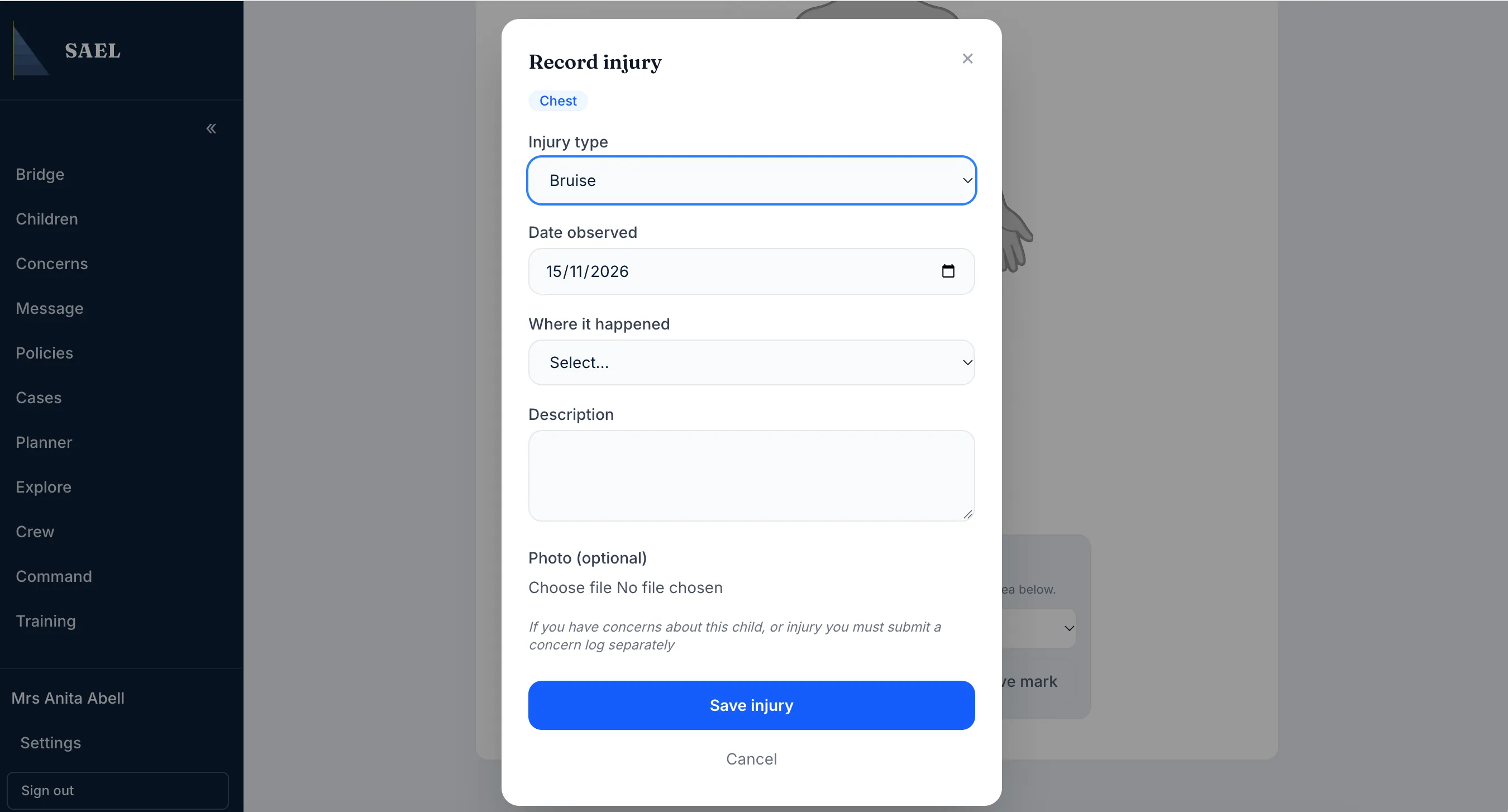
- Enter the injury date and the required injury details. SAEL’s injury record includes a body zone and injury type. Complete the description and any optional photograph or supporting information when useful.
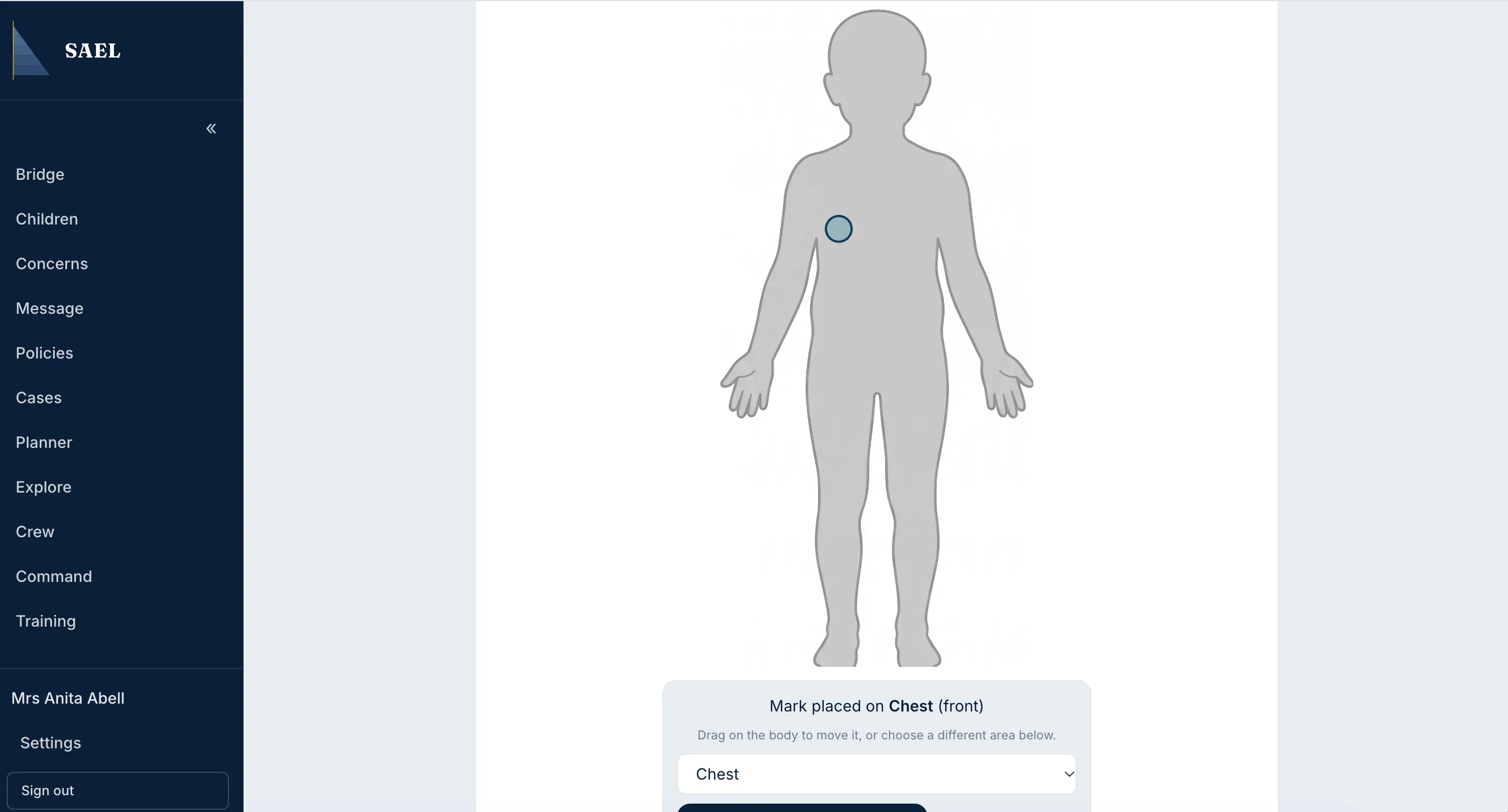
- Check the selected body zone and injury type against what you actually observed or were told. Do not infer a cause or diagnosis.
- Save the entry using the form’s save/submit action.
- Re-open the Injuries tab or chronology to confirm the entry has been recorded.
Record an injury when offline
Section titled “Record an injury when offline”SAEL’s offline safeguarding area can capture injuries when the browser supports secure local storage. The offline injury form requires a child, body zone, injury type and date; description and photo are optional. The record is queued on the device and synchronises when connection returns.
If offline storage is unavailable, SAEL cannot safely queue the record. Do not bypass this safeguard. Follow your setting’s immediate safeguarding and record-keeping procedure, then enter the information into SAEL when an authorised online route is available.
An SAEL entry does not replace emergency first aid, urgent medical care or your setting’s safeguarding escalation procedures.