
Add documents and log communications
Upload a document from the child record
Section titled “Upload a document from the child record”- Open the correct child record and select Documents.
- Select the upload/add control available to your role.
- Choose the file from your device. The uploader accepts PDF, JPG/JPEG, PNG, DOC and DOCX files.
- Enter the document title and choose a category; these are required.
- Add a description where it will help another authorised person understand the file.
- Check whether the child association is correct. Do not leave a file linked to the wrong child.
- Submit the upload and wait for the success confirmation.
- Confirm that the document appears in the Documents list. Select it to open or download it.
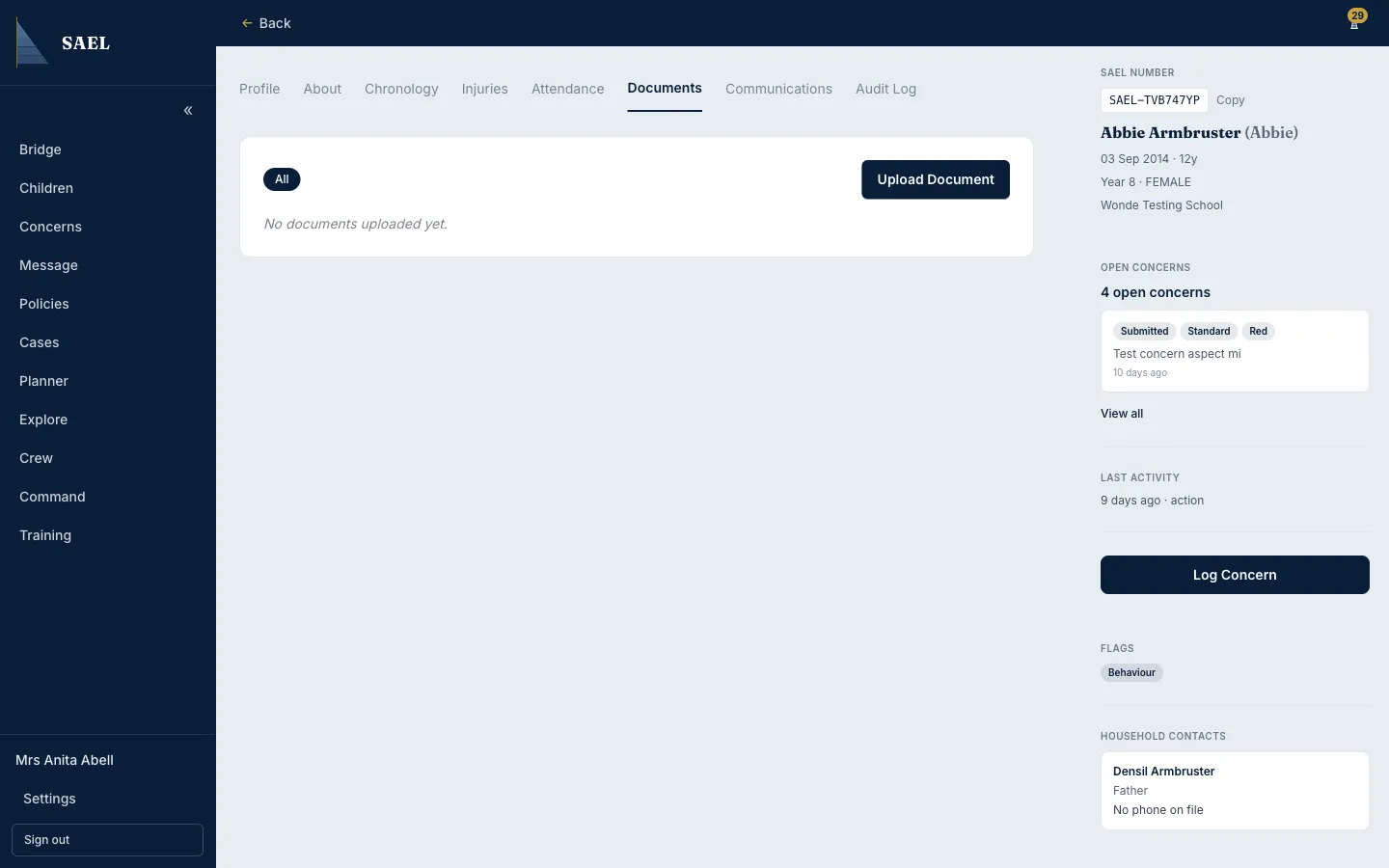
Users with the relevant edit permission may pin a document as Featured, upload a replacement or remove a document. Use the more-actions controls on the relevant document. Administrators may have a view of deleted documents; ordinary users should not assume that removing a document permanently erases its audit history.
Log a communication
Section titled “Log a communication”- Open the child’s Communications tab.
- Select the control to log a communication.
- Complete the direction and channel, then enter the sender, recipient, subject and body information requested by the form.
- Use the actual communication date/time where the form asks for it.
- Review the entry for accuracy and save it.
- Confirm it appears in the communications history.
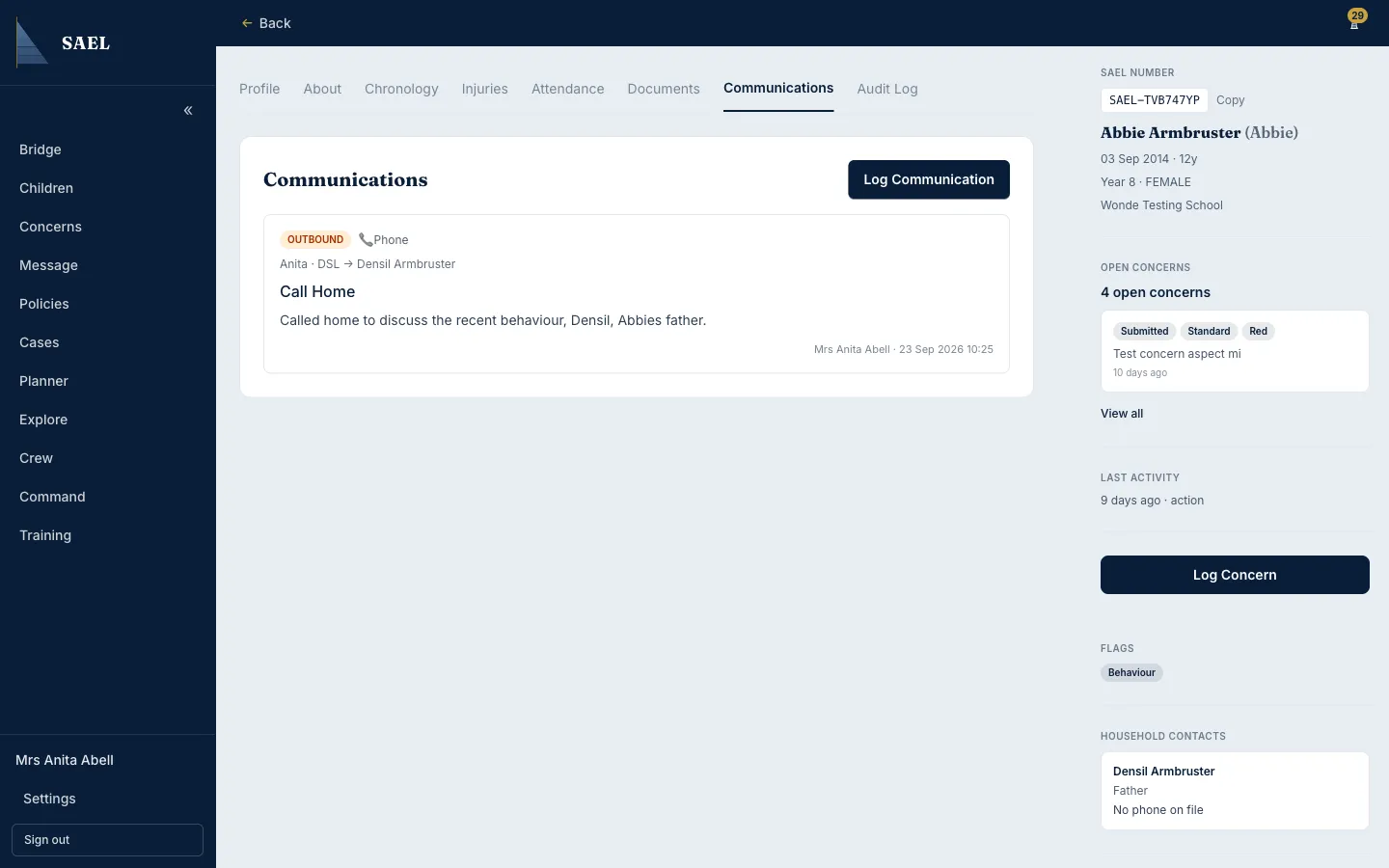
A communication log is a record of contact; it is not the same as sending a message through SAEL Messages. Use Messages when you need to contact another SAEL user.