
Understand the child record tabs
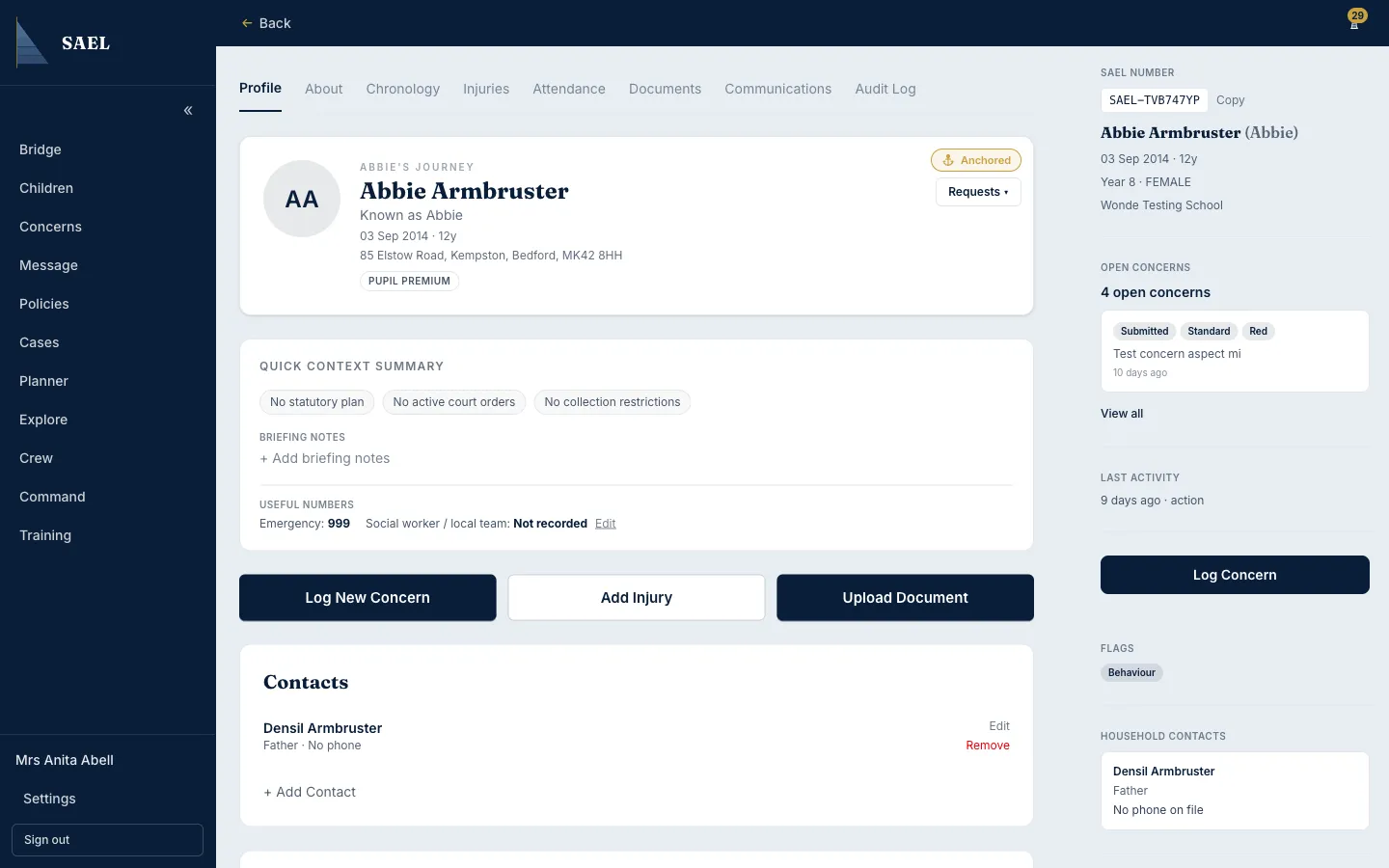
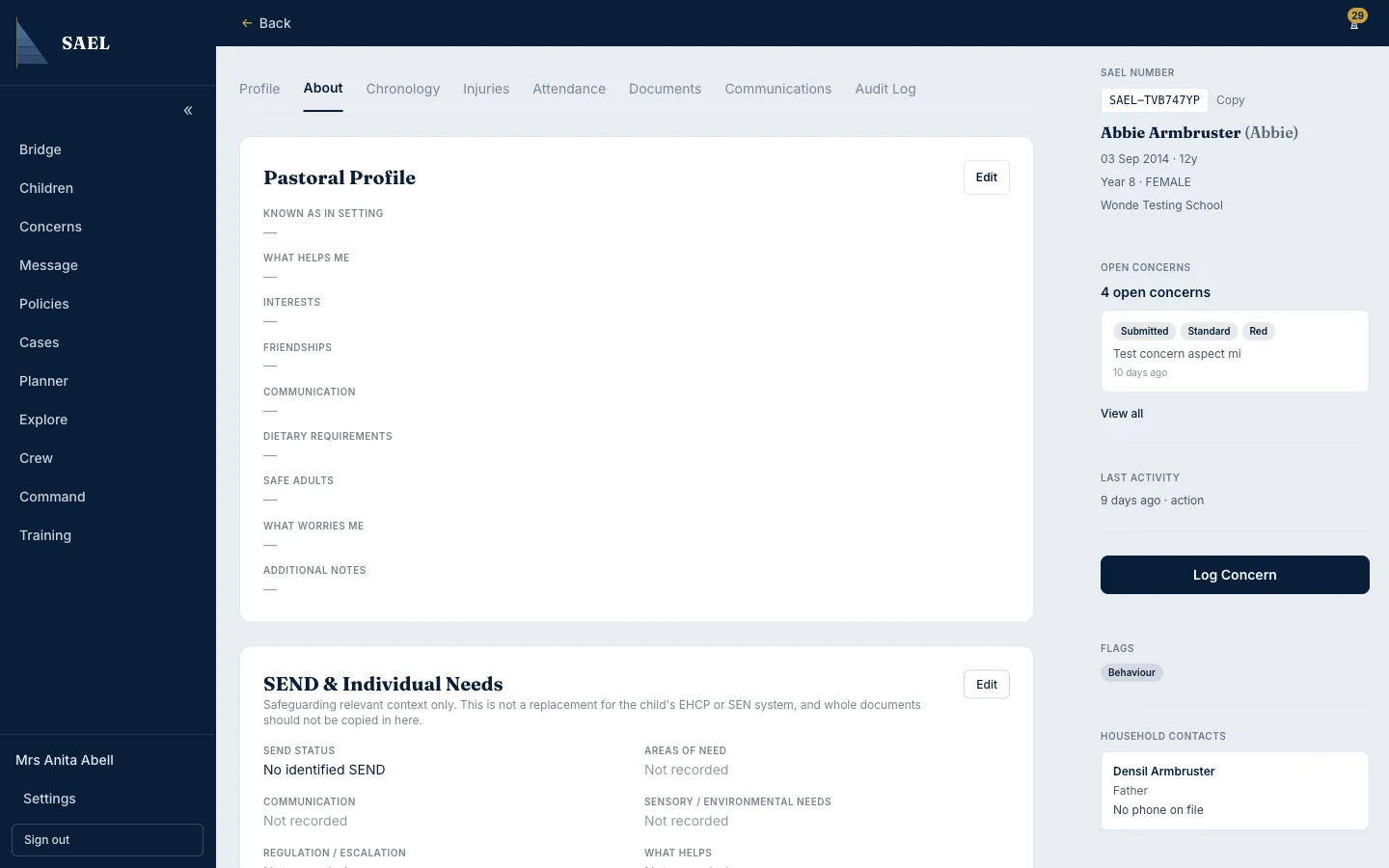
Open a child from Children to reach the child record. Confirm the child’s name and SAEL Number before entering or changing information. On smaller screens, child information may be available in the Child Info panel.
| Tab | What it is for | Typical task |
|---|---|---|
| Profile | The child’s main safeguarding/profile view and summary information. | Confirm identity and current profile context. |
| About | Additional child information, including relevant personal, contact, health or statutory details. | Review or update structured information you are permitted to manage. |
| Chronology | A time-ordered record of events linked to the child. | Review the sequence of concerns, injuries, meetings, actions, transfers and documents. |
| Injuries | Injury records associated with the child. | Record or review an injury entry. |
| Attendance | Dated attendance information supplied by an enabled integration. | Review an attendance pattern where the setting has a supported feed. |
| Documents | Files linked to the child. | Open, download, upload or manage a document where permitted. |
| Communications | Logged communications involving the child. | Record contact or review previous communication entries. |
| Search Log | Search/access-related history shown for the child record. | Review recorded search activity where available. |
Some tabs are permission-dependent. Attendance only appears when the integration provides dated attendance data and the user’s access permits it. The Audit Log is available to users with full access; it is not a general staff tab.
Copy the SAEL Number
Section titled “Copy the SAEL Number”Use the copy control beside the SAEL Number in the child header. Use this identifier when arranging a Journey or communicating with SAEL support; avoid relying on a child’s name alone when several records may have similar names.