
Understand restricted records and access reasons
When SAEL asks for an access reason
Section titled “When SAEL asks for an access reason”Some records require a user to give a reason before opening them. When the Access Reason Required panel appears:
- Stop and confirm that you have a legitimate work reason to view the record.
- Enter a clear reason in the text field, such as the work activity you are undertaking. Avoid vague entries such as “checking”.
- Select the continue/confirm control.
- Use the record only for the purpose you stated.
The reason is part of the access-control process. Do not enter a reason on behalf of another user.
If access is denied
Section titled “If access is denied”A record may be restricted even when you can open the general Children or Concerns area. The restriction may be specific to the record. Ask the DSL or the person responsible for the restriction to review your need for access. Do not ask a colleague to export or screenshot restricted information for you.
Give Access and restrictions
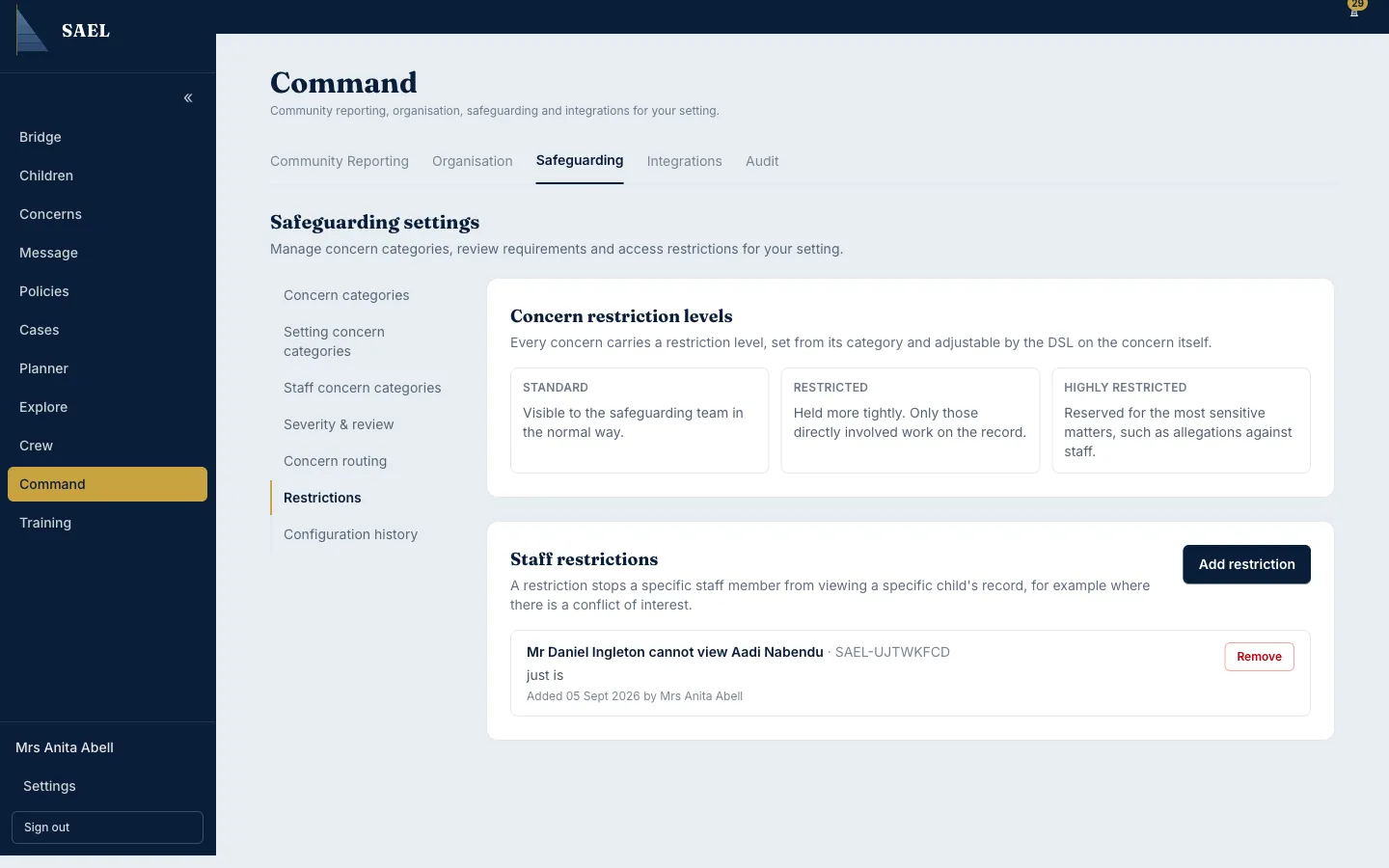
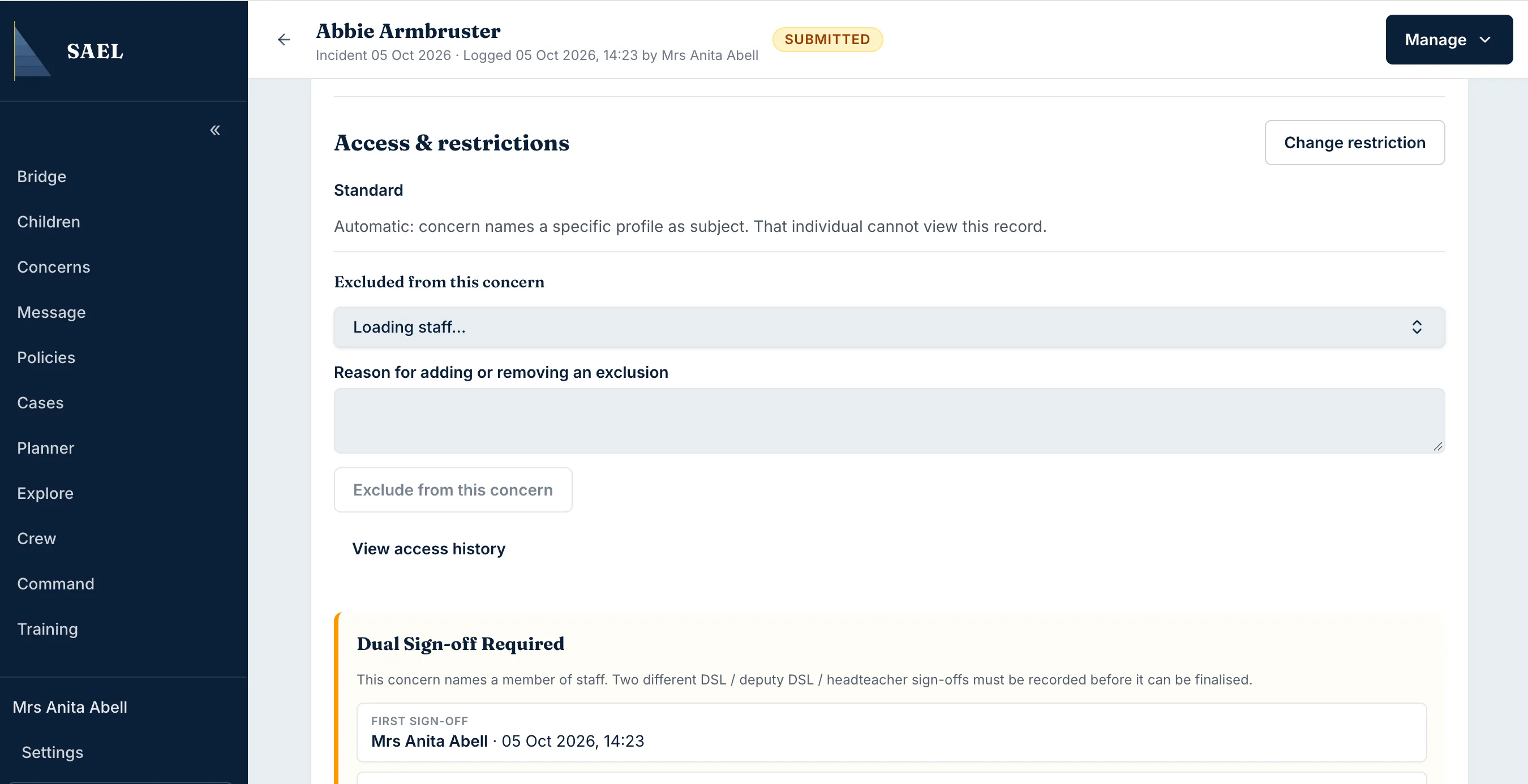
Section titled “Give Access and restrictions”An authorised user may see Give Access on a concern. Treat this as a controlled access action: confirm the intended person and the reason before saving. Access restrictions and restriction levels are configured under Command → Safeguarding → Restrictions. The exact options available depend on the setting’s configuration and your permissions.
Keep access proportionate
Section titled “Keep access proportionate”Only grant access to people who need the information for their role. Revisit access when a person’s role changes or they leave. SAEL’s audit history supports accountability; it does not replace the setting’s own safeguarding decisions.