
Set training requirements for all staff or a role
Open the setting’s training requirements
Section titled “Open the setting’s training requirements”- Open Crew → Staff.
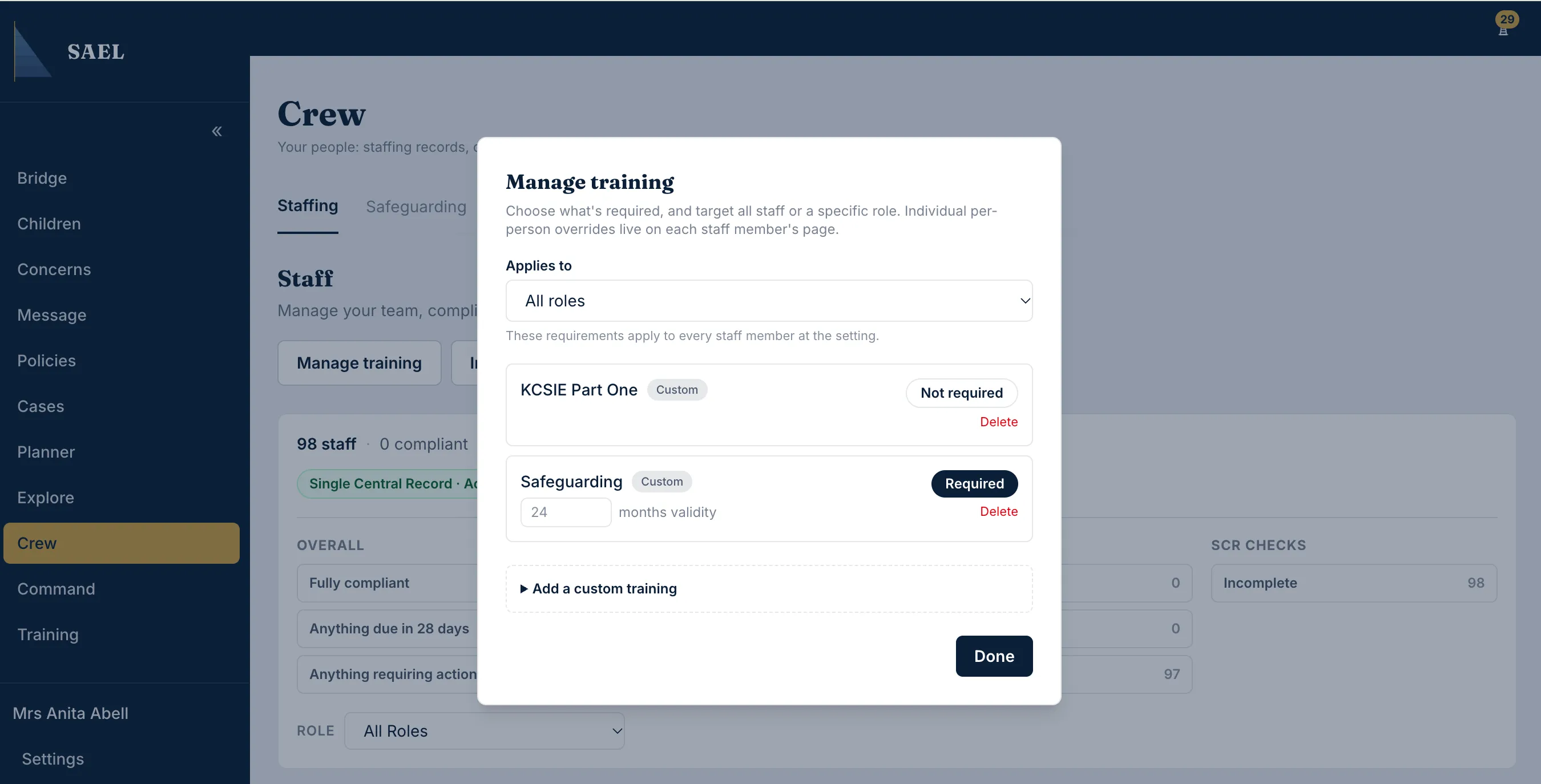
- Select Manage training. This control is shown to users who can manage staff records.
- In the Manage training window, find Applies to.
- Choose All roles to set a requirement for every staff member at the setting, or choose a specific role such as Staff Members, DSL, Deputy DSL, Headteacher or Headteacher and DSL.
A role-specific requirement is added to the All roles requirements. It does not replace them. For example, a person assigned to a role receives both the universal requirements and the requirements for that role.
Mark a training item as required
Section titled “Mark a training item as required”- Find the training item in the list.
- Select Required to make it a requirement for the selected scope. If the button currently reads Not required, selecting it adds the requirement.
- To remove that requirement from the selected scope, select Required so it changes to Not required.
- Where the item is required, review the months validity field. The placeholder shows the standard training validity; enter an override only when your setting intends a different validity period.
- Move focus out of the months field to save the override. SAEL saves the validity value when the field loses focus; wait for the save to finish before closing the window.
- Repeat for each training item and role scope that your policy requires.
Add a custom training item
Section titled “Add a custom training item”- Expand Add a custom training near the bottom of the window.
- Enter a clear name in the training field, for example a specific course or safeguarding subject your setting needs to track.
- Enter the validity in months. The default is 24 months; change it if the certificate or your setting’s rule has a different period.
- Select Add.
- Wait for the new item to appear in the list.
- Select Required for the relevant role scope. Creating a custom training item does not automatically make it required for everyone.
Remove a custom item
Section titled “Remove a custom item”Select Delete beside a custom item and read the confirmation. Removing it also removes any setting or individual requirements that use it. SAEL blocks deletion if someone has a logged completion record. If it is already part of staff history, keep the item and change whether it is required instead of trying to erase the evidence.
Select Done when you have finished. Review the staff overview afterwards to see the updated required counts.