
Find and filter children
Open the register
Section titled “Open the register”- Select Children from the main navigation.
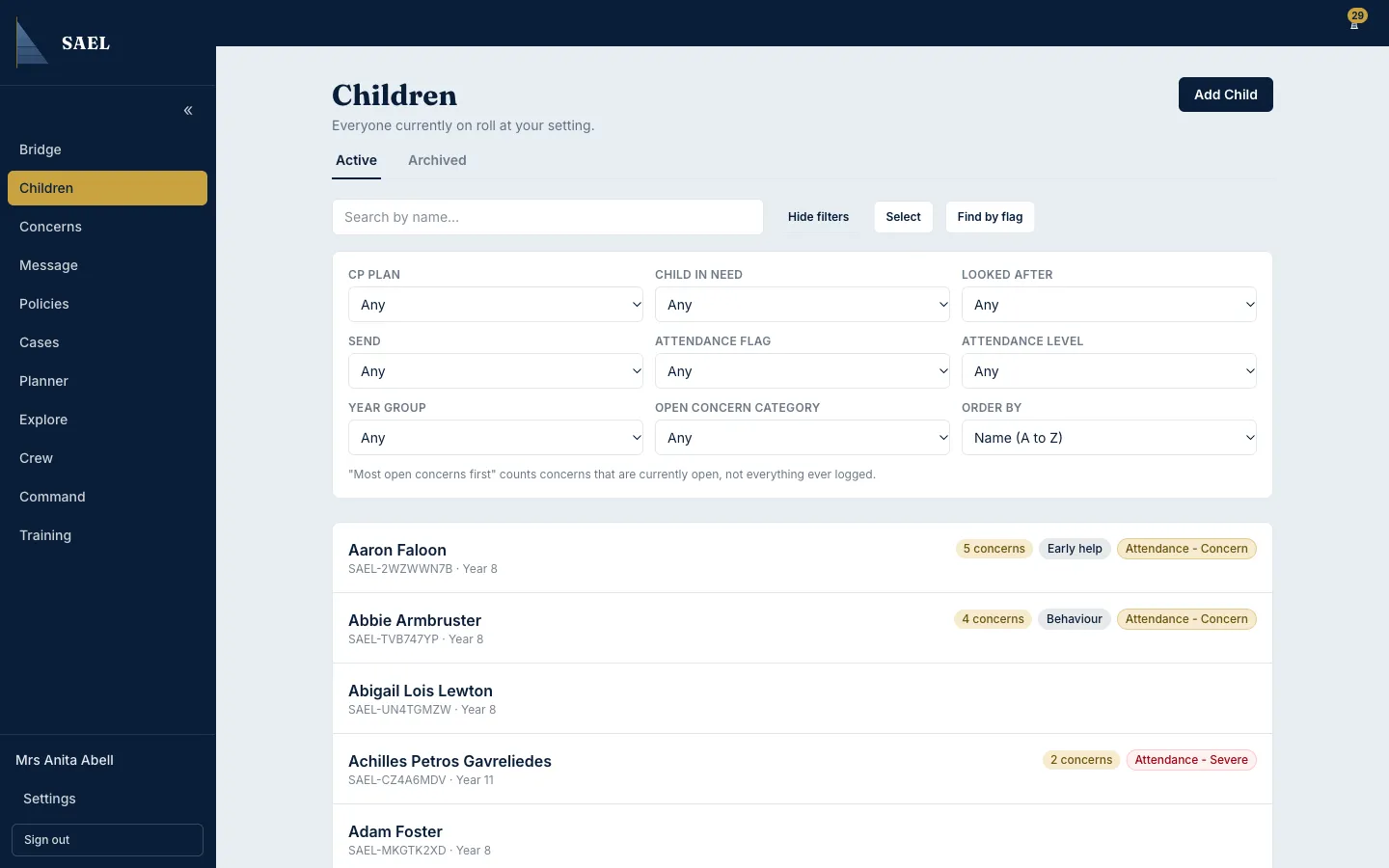
- The register lists children available to your account. SAEL displays the list in pages; use the page controls to move through longer lists.
- Use the search field to look for a child by name. Open the matching row to view the child’s record.
- If your setting uses cohorts, select My cohort to narrow the register to the children assigned to you.
- Use the safeguarding filters when you need to find children with a particular recorded status. Available filters include safeguarding status such as Child Protection Plan, Child in Need and looked-after status, SEND, attendance flags or level, year group and concern category where the page offers them.
- Check the active filters before acting. Clear or reset filters when the result list looks unexpectedly small.
Archived children
Section titled “Archived children”Archived records are a separate area and are not part of the ordinary staff member register. Access is limited to safeguarding-lead roles and SAEL administrators. If you cannot see the archived area, ask the DSL rather than creating a second profile for a child who may already have a historical record.
Add a child
Section titled “Add a child”Users with the required management permission can use Add Child from the register. For a setting opted into MAST™, SAEL may notify you if the identity details match a profile elsewhere in MAST™. Follow Add a child and respond to a duplicate notice.