
Add notes, actions and messages to a concern
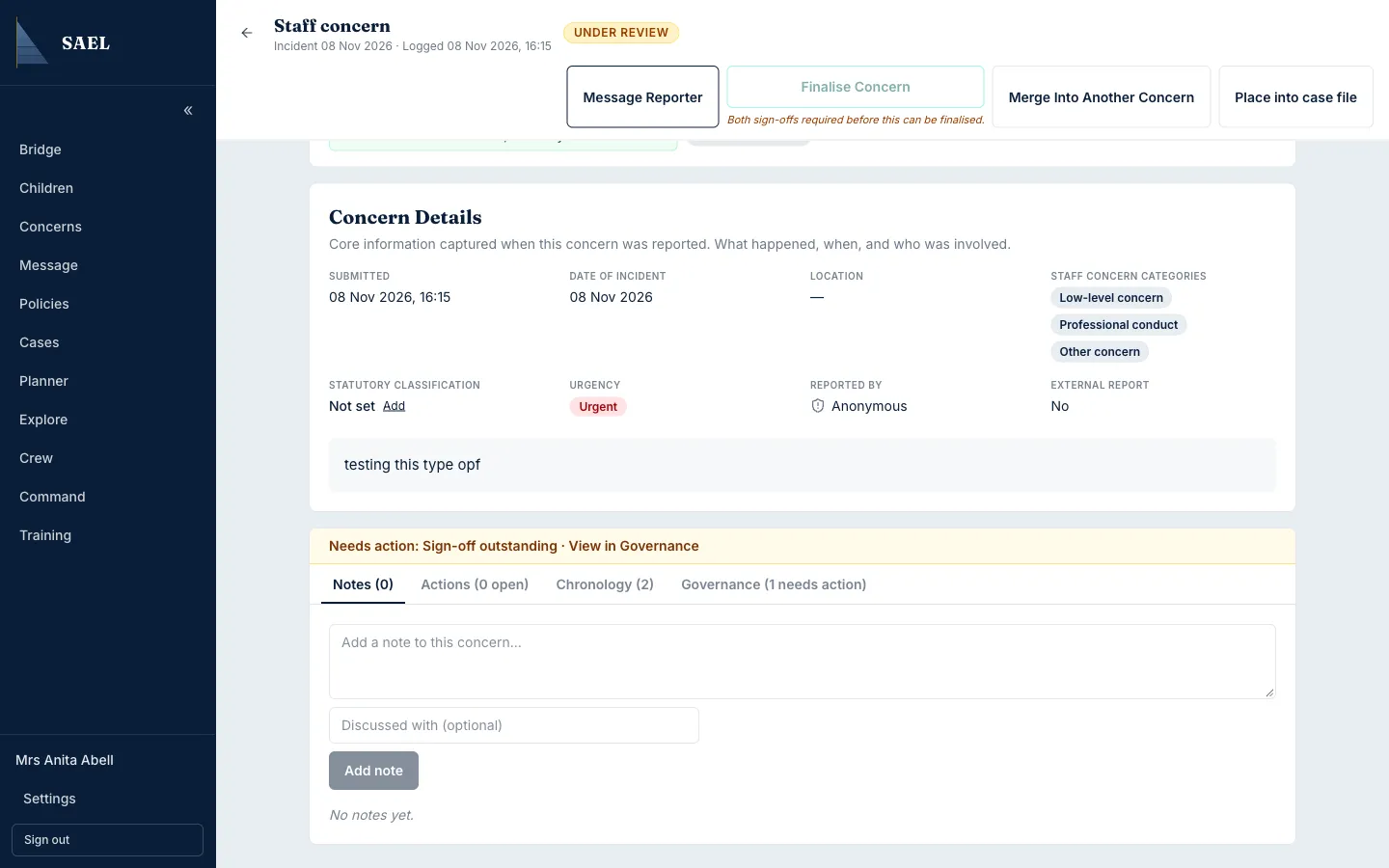
Add a concern note
Section titled “Add a concern note”- Open the concern from Concerns.
- Complete the initial review first if the notes area is locked.
- Open the concern’s Notes area.
- Enter the note in the note field. Record a factual update, decision or discussion rather than repeating the original concern without adding context.
- Complete Discussed with when relevant. This field is optional in the form.
- Select the add/save note control and check that the note appears in the concern record.
Create an action
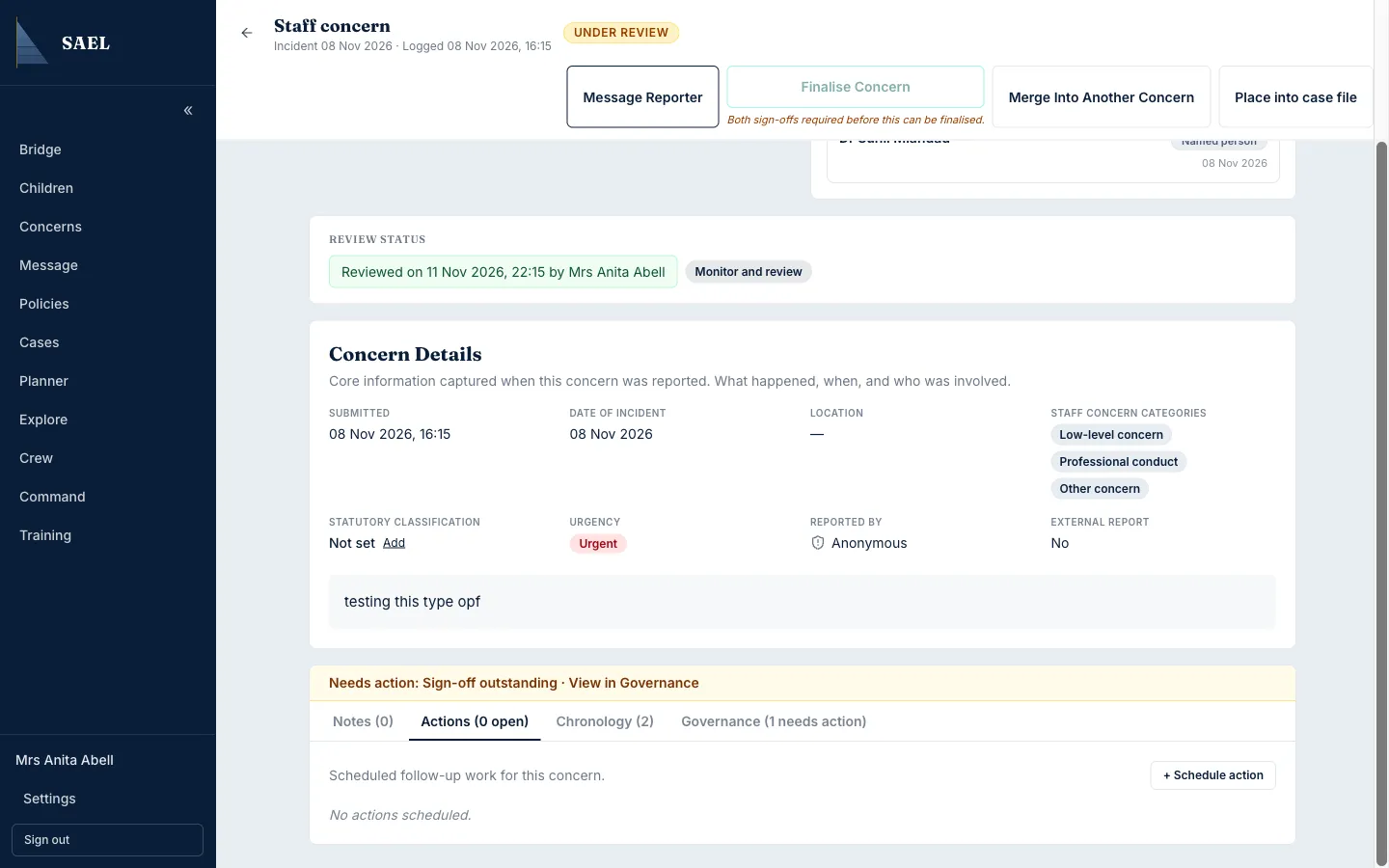
Section titled “Create an action”- Open the concern’s Actions area.
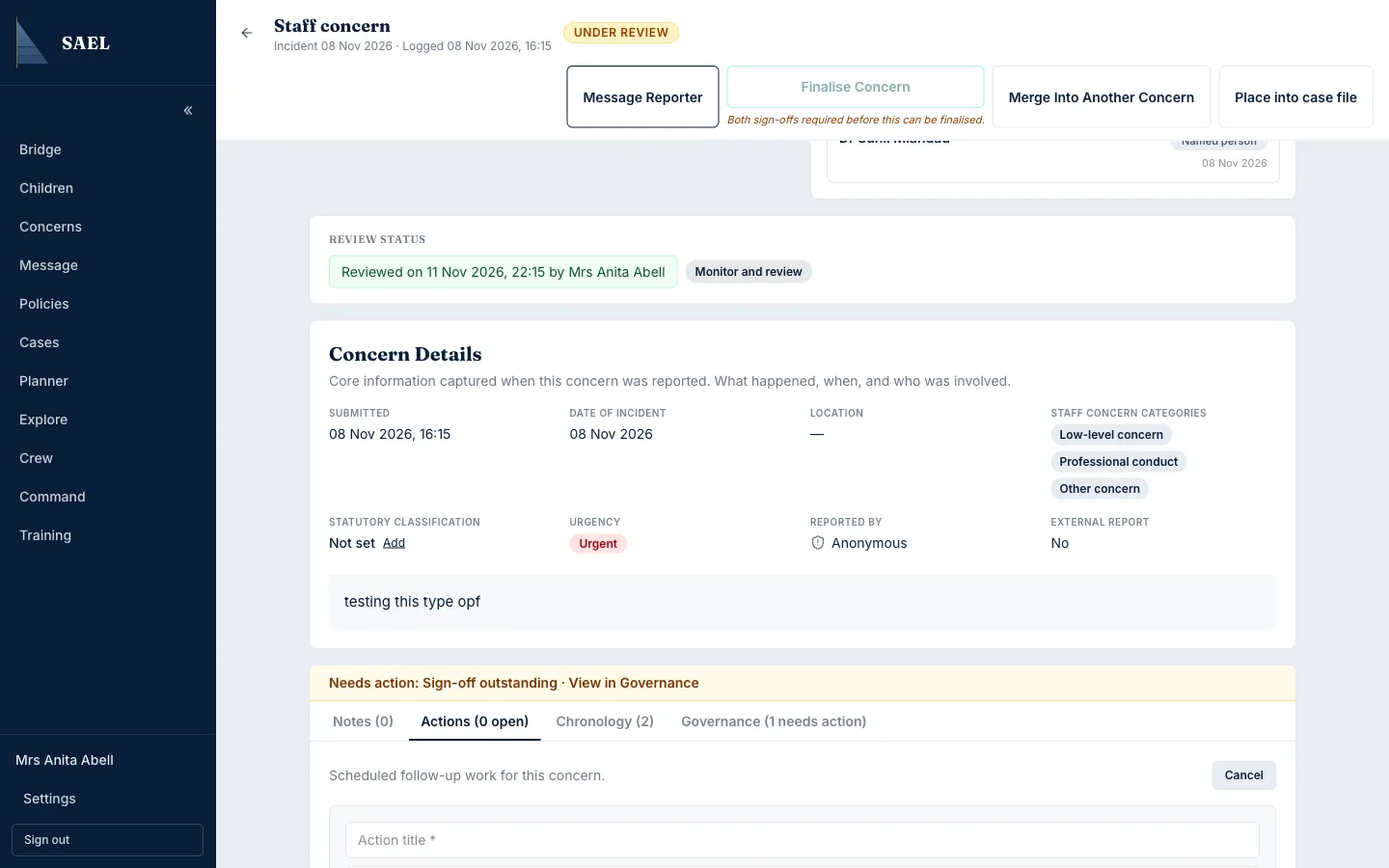
- Select the control to add an action.
- Enter the action title. This is required.
- Add a description if the assignee needs more context.
- Choose an assignee where the form offers one and set a due date when required or appropriate.
- Check the task is specific and achievable. Avoid vague titles such as “follow up”; state what needs doing.
- Save the action and confirm it appears in the action list with the intended owner and deadline.
- When the work is complete, return to the action and select its completion control. Confirm the status changes to completed.
Message the relevant person
Section titled “Message the relevant person”Use the concern’s message control when you need to contact the reporter or the DSL within the permitted workflow. SAEL may prevent a reporter from messaging themselves. For a wider staff conversation, use Messages instead and disclose only information the recipients are authorised to see.
A note, an action and a message serve different purposes: a note records the case history, an action assigns work, and a message contacts another person.