
Upload and verify a DBS certificate
- Open Crew → Staff, search for the person and open their compliance record.
- Select Vetting or Single Central Record.
- Find the Enhanced DBS check and select Upload & verify.
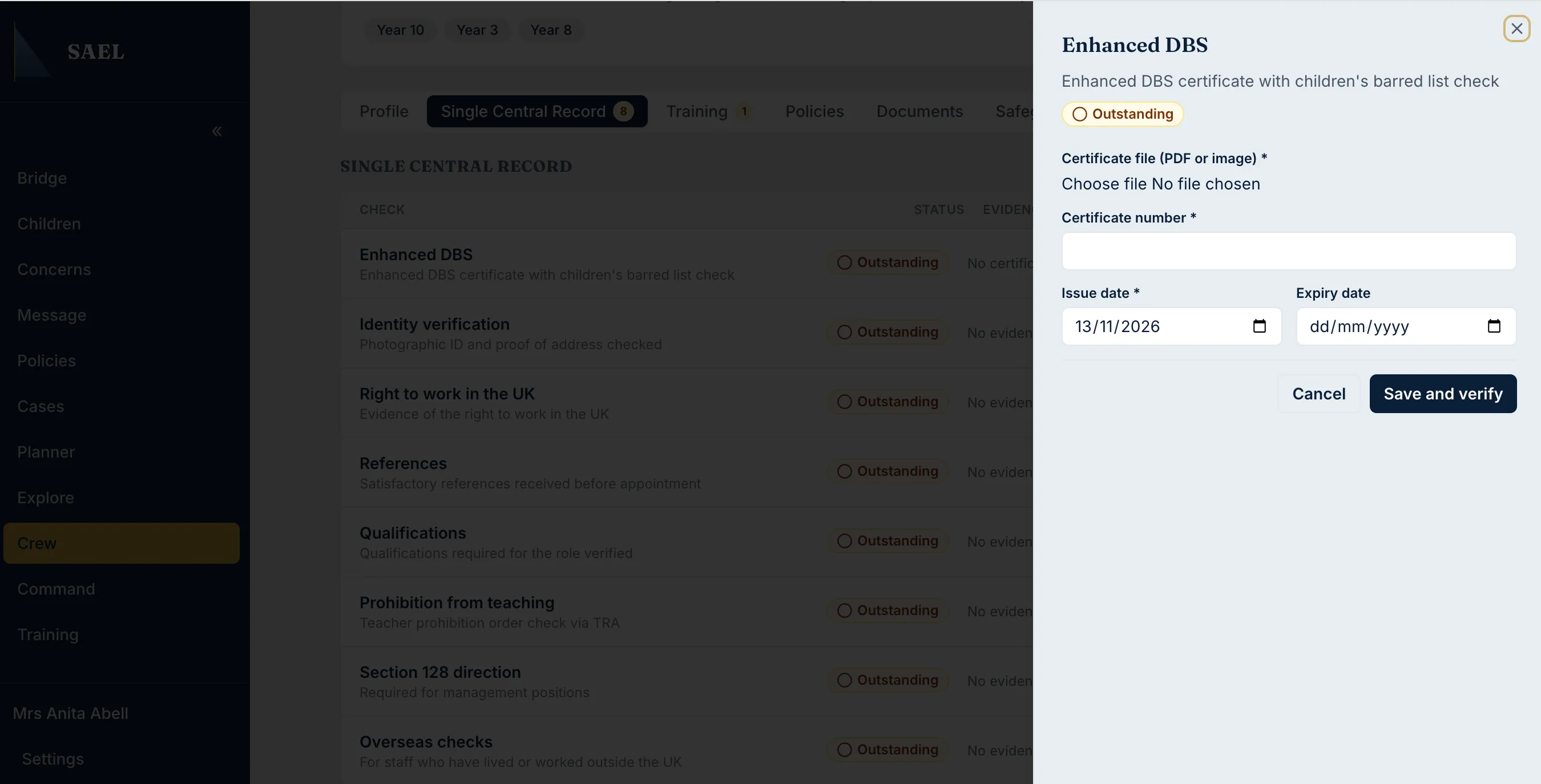
- Under Certificate file, choose the DBS certificate file. The form accepts PDF or image files.
- Enter the Certificate number exactly as shown on the certificate.
- Check the Issue date and enter it. The field is required and defaults to the current date, so change it if the certificate was issued earlier.
- Enter the Expiry date where one applies or is recorded. The expiry field is optional in the form.
- Recheck the file, certificate number and dates. Make sure you are editing the correct person’s record.
- Select Save and verify.
- Wait for the confirmation that the DBS record has been saved. The staff record should now show the certificate number and its issue/expiry details.
- Use View uploaded certificate to reopen the saved evidence and verify that it is legible and correct.
If an existing certificate is shown, use the view action to inspect it rather than uploading a duplicate. A missing or expired certificate should remain visible as an outstanding issue until the correct evidence has been checked and recorded.
Store DBS information carefully. Only authorised people should access the certificate and associated number. SAEL records evidence and verification; it does not make the recruitment decision for your setting.