
Create and manage a casefile
When to use a casefile
Section titled “When to use a casefile”A casefile is a structured workspace for a connected piece of work. It can bring together children, external people, concerns, documents, notes, contributions and a chronology. It does not replace an individual child’s chronology or a concern record; use the casefile to organise related work while preserving the underlying records.
Create a casefile
Section titled “Create a casefile”- Open Cases from the navigation. If you are a childminder and cannot see Cases, you may need to enable Show advanced features in Settings; that changes the menu display only and does not grant permission.
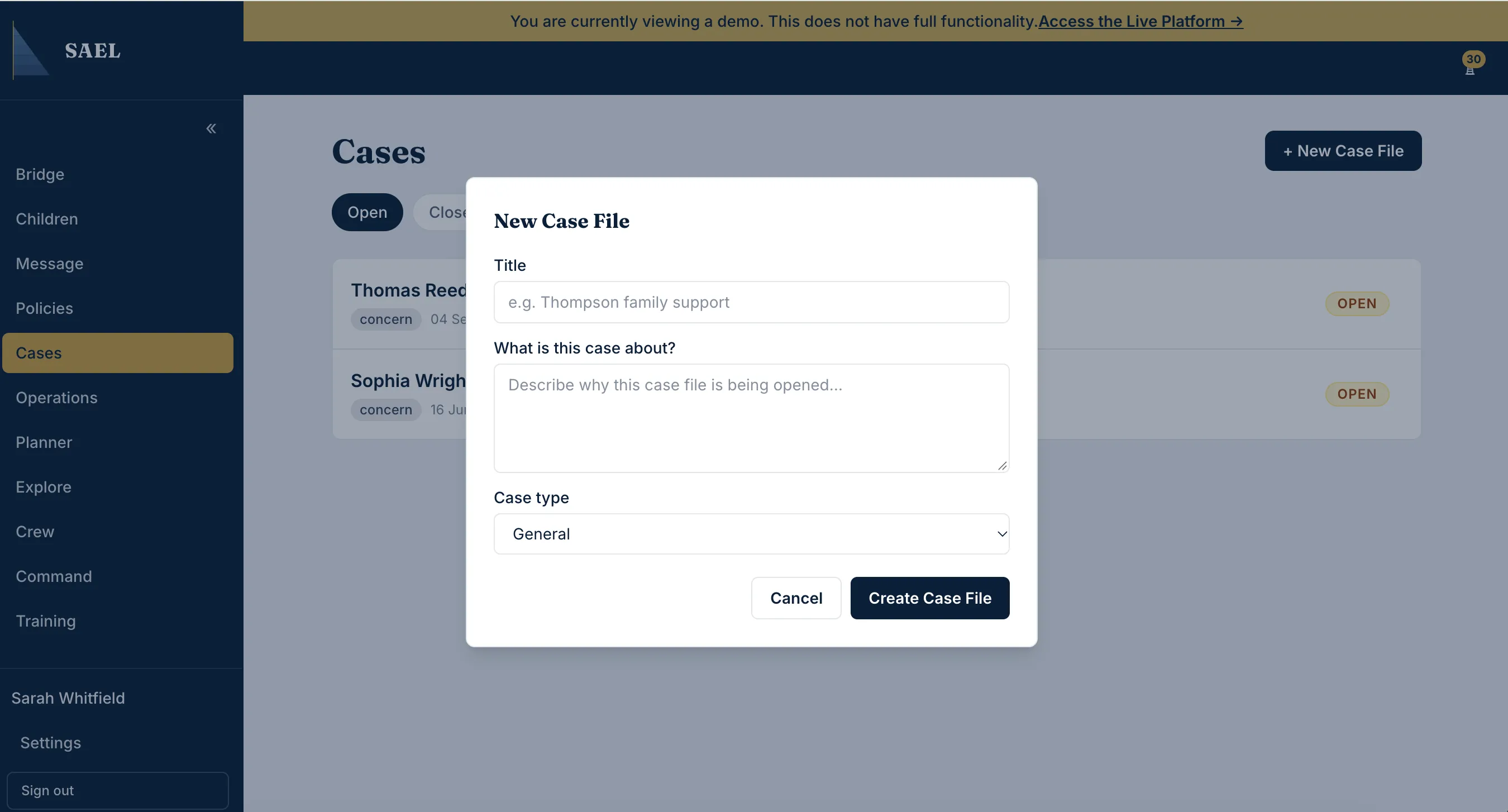
- On the casefiles page, select New Case File. You need permission to manage casefiles to create one.
- Enter a meaningful casefile title. Use a neutral, recognisable title that will make sense to authorised colleagues.
- Enter the description explaining why the casefile is being opened and what work it is intended to organise.
- Select the setting where the casefile belongs, if the form asks for it.
- Choose the casefile type where offered: General, Early Help, Child Protection, Family Support, Contextual Safeguarding, Staff Concern or Other. Select the type that best reflects the purpose; do not treat the label as a formal status decision.
- Review the title, description, setting and type. Select the create/save action.
- Confirm the new casefile appears in the Open list and open it to begin adding relevant material.
Add records and people
Section titled “Add records and people”Within the casefile, use the relevant add controls to connect the SAEL child record or an external child, parents/carers, key people, concerns, documents, notes or contributions. Search for an existing SAEL child and confirm the SAEL number before linking. Do not create a second child record just because a casefile needs to refer to someone outside your setting; use the external-child route where the interface offers it.
When connecting a concern, check that it is the correct concern and that the person accessing the casefile is authorised to see it. Adding a record to a casefile does not make the underlying record less sensitive.
Review and close a casefile
Section titled “Review and close a casefile”Use the casefile’s own sections to review its connected records, notes, documents, contributions and chronology. When the work is ready to close, use the close action and enter the required closure summary. Review the summary for accuracy before confirming. Closed casefiles appear in the Closed queue; use All to find records across both states.
Removing a casefile is a soft-delete operation: its record and audit history are retained. If it was removed in error, contact SAEL support about restoration rather than recreating it and leaving duplicate casefiles.