
Use Planner and log a meeting
Open Planner
Section titled “Open Planner”- Open Planner from the main navigation. The Planner page is served by the Meetings area; the older
/plannerroute redirects to it. - Review the calendar. Use Previous month and Next month to move between months.
- Select Today to return to the current date.
- Use the available view controls to change the calendar presentation when you need a different view of the schedule.
Log a meeting
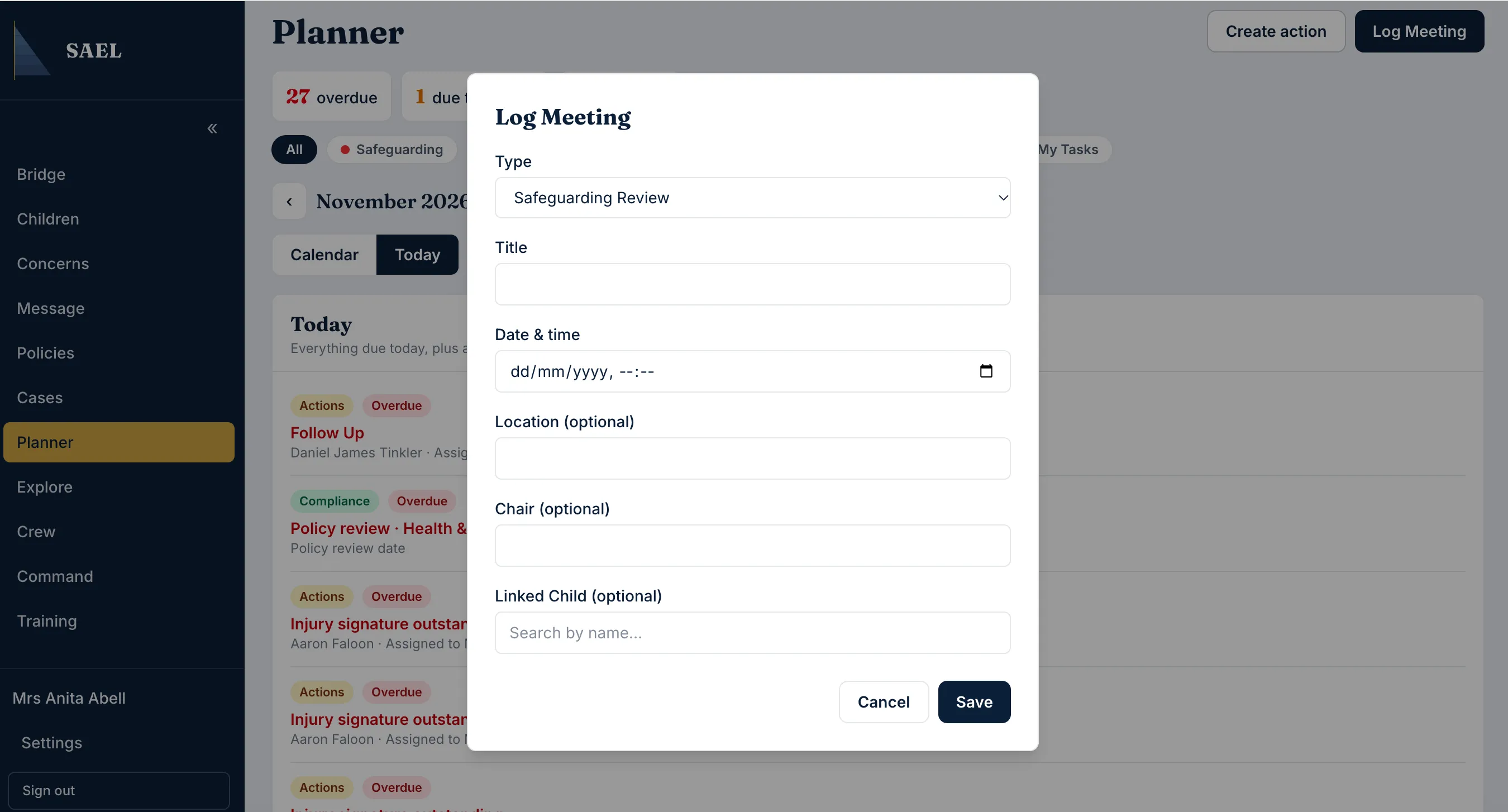
Section titled “Log a meeting”- From Planner, select Log Meeting.
- In the meeting form, enter the meeting details requested, including its date/time and subject or purpose.
- Where the meeting relates to a child, use the child search field. Start typing the child’s name, wait for the search results, then select the correct record. Check the child identity rather than relying on a partial name match.
- Complete the other meeting details shown in the form. Use a clear description so a colleague can understand why the meeting took place.
- Review the date, time, child link and meeting details.
- Select Save.
- Check that the meeting appears on the calendar on the expected date.
Edit a meeting
Section titled “Edit a meeting”- Select the meeting on the calendar or in the relevant list.
- Select the edit action.
- Update the meeting details and, where appropriate, record the outcome.
- Select Save changes.
- Confirm the updated details are visible.
Cancel a meeting
Section titled “Cancel a meeting”- Open the meeting and choose Cancel meeting.
- Read the confirmation panel.
- Enter the cancellation reason when prompted. SAEL requires a reason for cancellation.
- Submit the cancellation and check the meeting’s status.
A meeting record is part of the setting’s record of work. Record actual outcomes and attendance; do not use a cancelled meeting record to imply that the meeting took place.