
Change your password and set up MFA
Open your personal settings
Section titled “Open your personal settings”- Sign in to SAEL.
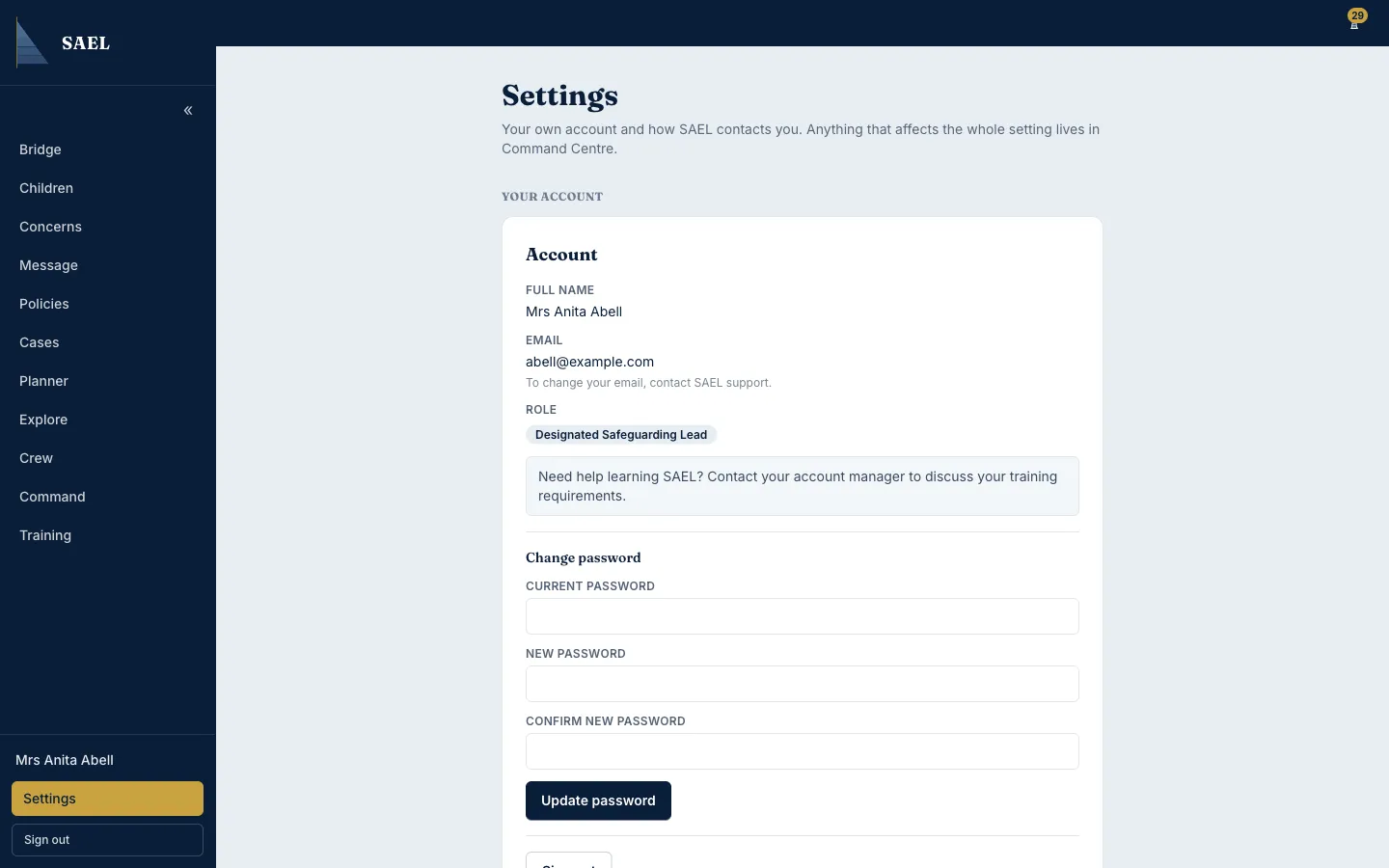
- Open Settings from the account navigation. Some staff-only accounts may not have a Settings link; ask your administrator if you need an account change.
- Find the account or security section.
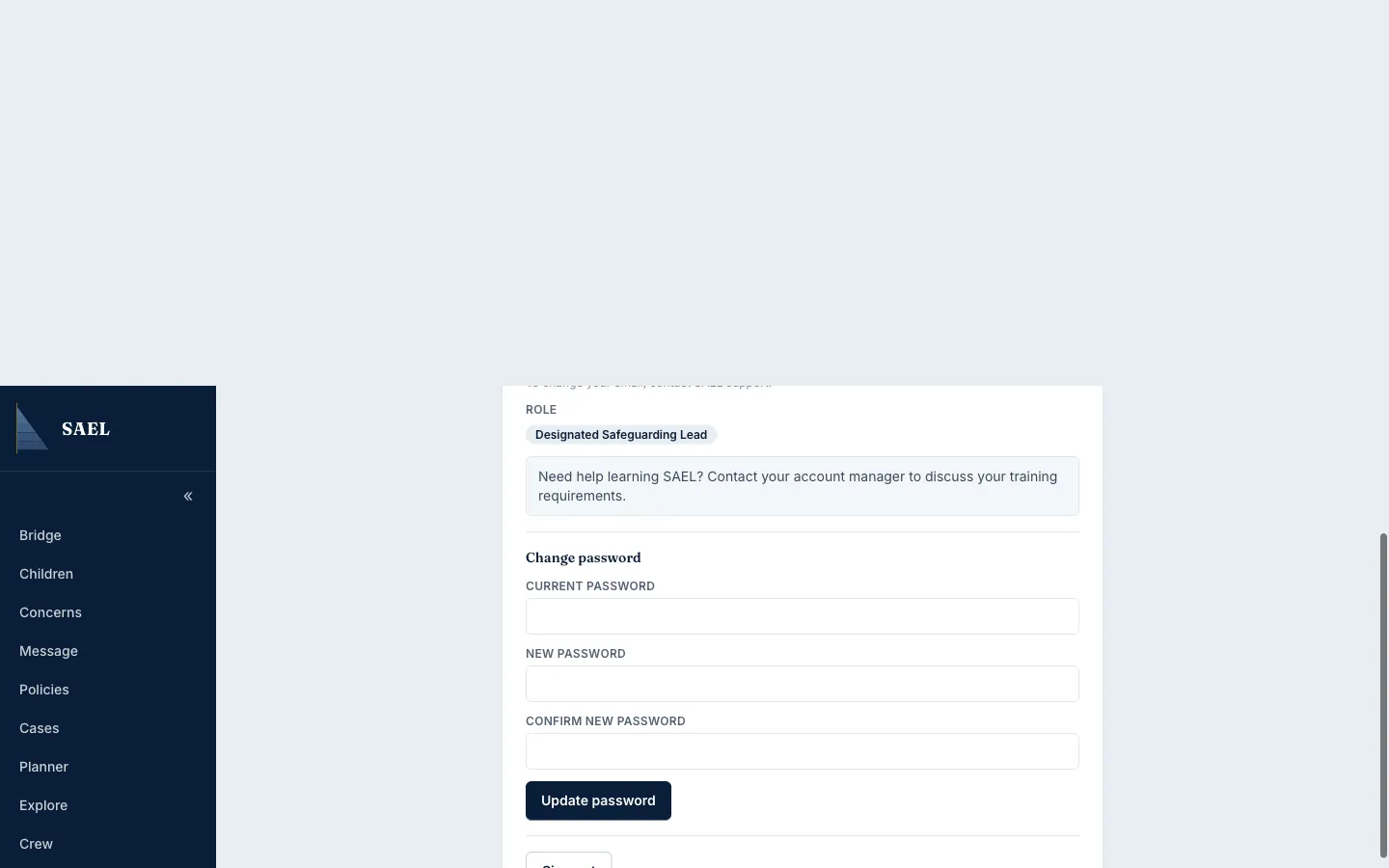
- To change your password, enter your current password and then enter the new password in the new-password fields.
- Use a password of at least 12 characters and make sure the confirmation matches.
- Save the change and sign in again if SAEL asks you to.
Set up multi-factor authentication
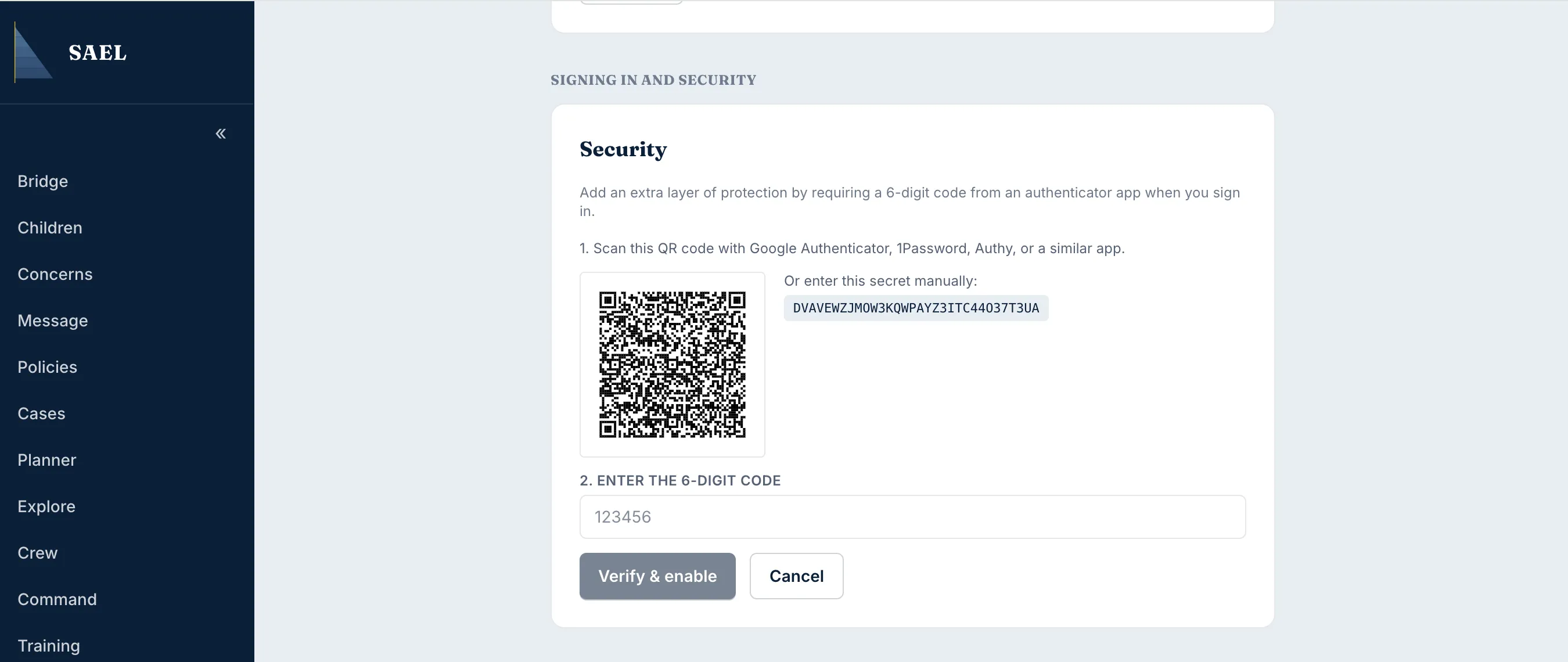
Section titled “Set up multi-factor authentication”Where MFA setup is available, SAEL uses an authenticator application. The setup screen provides the information needed to pair the app. Common authenticator apps include Google Authenticator, 1Password and Authy.
- Open the MFA or authenticator setup area in Settings.
- Start the setup and follow the on-screen pairing instructions in your authenticator app.
- Enter the one-time code requested by SAEL to confirm the pairing.
- Keep your authenticator available for future sign-ins. Do not send a one-time code to a colleague or to someone claiming to be SAEL support.
The exact recovery options are determined by the security screen shown to your account. Contact SAEL support if you lose access to your authenticator; do not disable another user’s MFA.
Your setting may require MFA for everybody
Section titled “Your setting may require MFA for everybody”A setting’s module controller can turn on MFA required for all staff under Command → Organisation → Details → Setting controls. When enabled, every staff member at that setting must configure MFA. This is a setting-wide policy, not the same as an individual choosing MFA voluntarily.