
Accept your invitation and sign in
Before you start
Section titled “Before you start”You need an invitation sent to the email address that your setting has given SAEL. A setting administrator normally sends it from Command → Organisation → Staff & roles → Invite Staff Member. The invitation email is specific to the invited address.
Accept the invitation
Section titled “Accept the invitation”- Open the invitation email in the mailbox used by your setting. Check junk or spam if it is not in the inbox.
- Select the invitation button in that email. It opens SAEL’s invitation acceptance page; do not copy the token into another website.
- Follow the on-screen account setup steps and choose your password when prompted.
- Complete any additional security setup requested by your setting. If the setting requires multi-factor authentication, you will need to configure it before continuing to use the account.
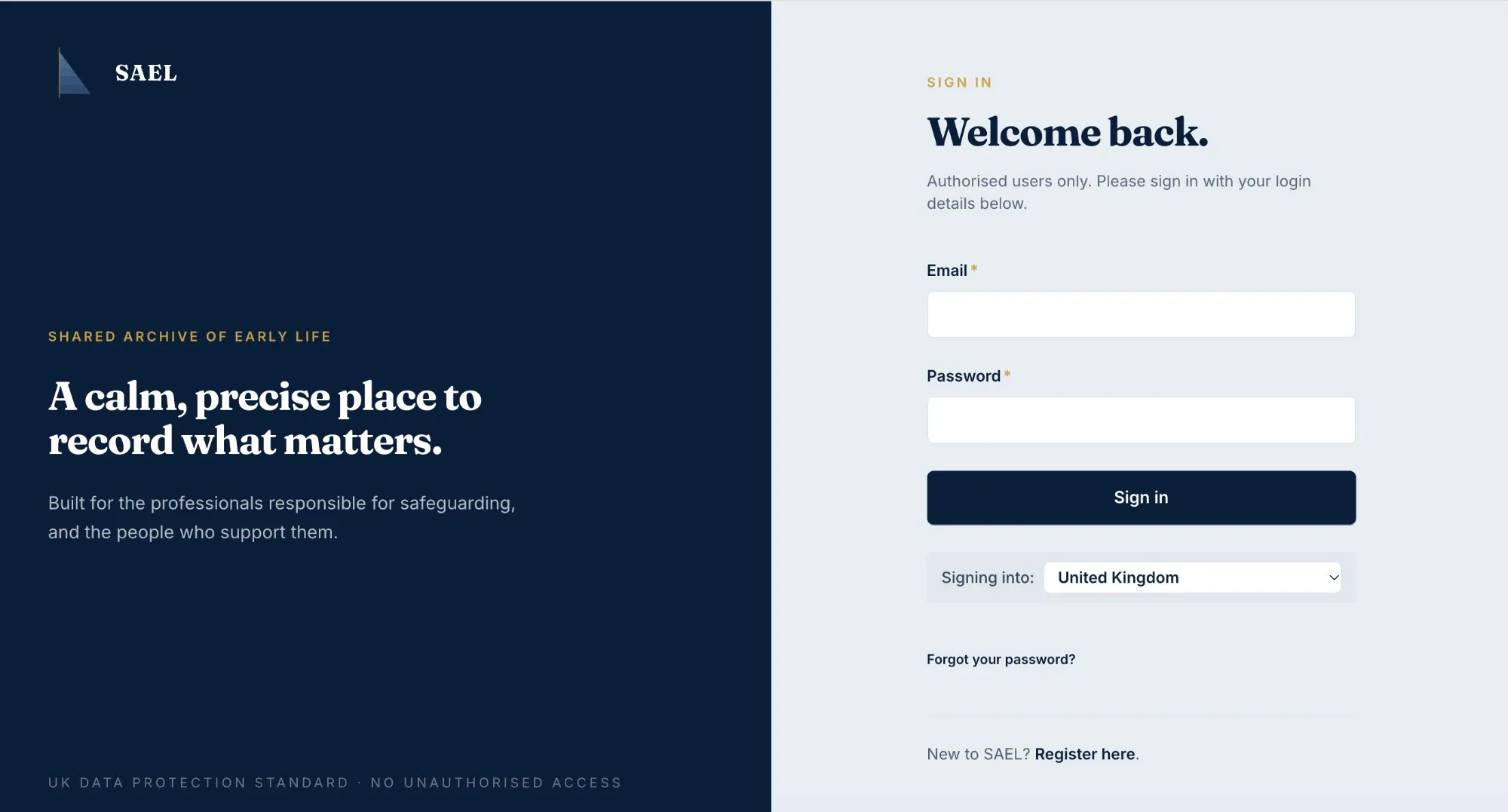
- Sign in using the invited email address and the password you have just chosen.
- Check the name and setting shown in SAEL. If either is wrong, ask the person who invited you or raise a support ticket rather than creating a second account.
What happens next
Section titled “What happens next”SAEL assigns the account the role selected by the person who invited you. That role determines your starting access. The setting can also assign a custom setting role after your account exists. Your first page depends on the role: safeguarding leads normally land on the dashboard, staff members on the staff submission area, and staff administrators on Crew.
If the invitation does not work
Section titled “If the invitation does not work”An invitation may not be sent if the email address already has an active account in that setting. A person who already has a signed-in SAEL account may also need their existing access reviewed rather than receiving another email. Ask the setting administrator to check the invitation and account record; do not ask them to invite a different email address unless that is genuinely your correct work address.