
Manage your notification preferences
Open Notifications
Section titled “Open Notifications”- Open Settings from the account navigation.
- Scroll to the Notifications section.
- Wait for Notification Preferences to load. The available notification types depend on your account role; you will not necessarily see the same list as another colleague.
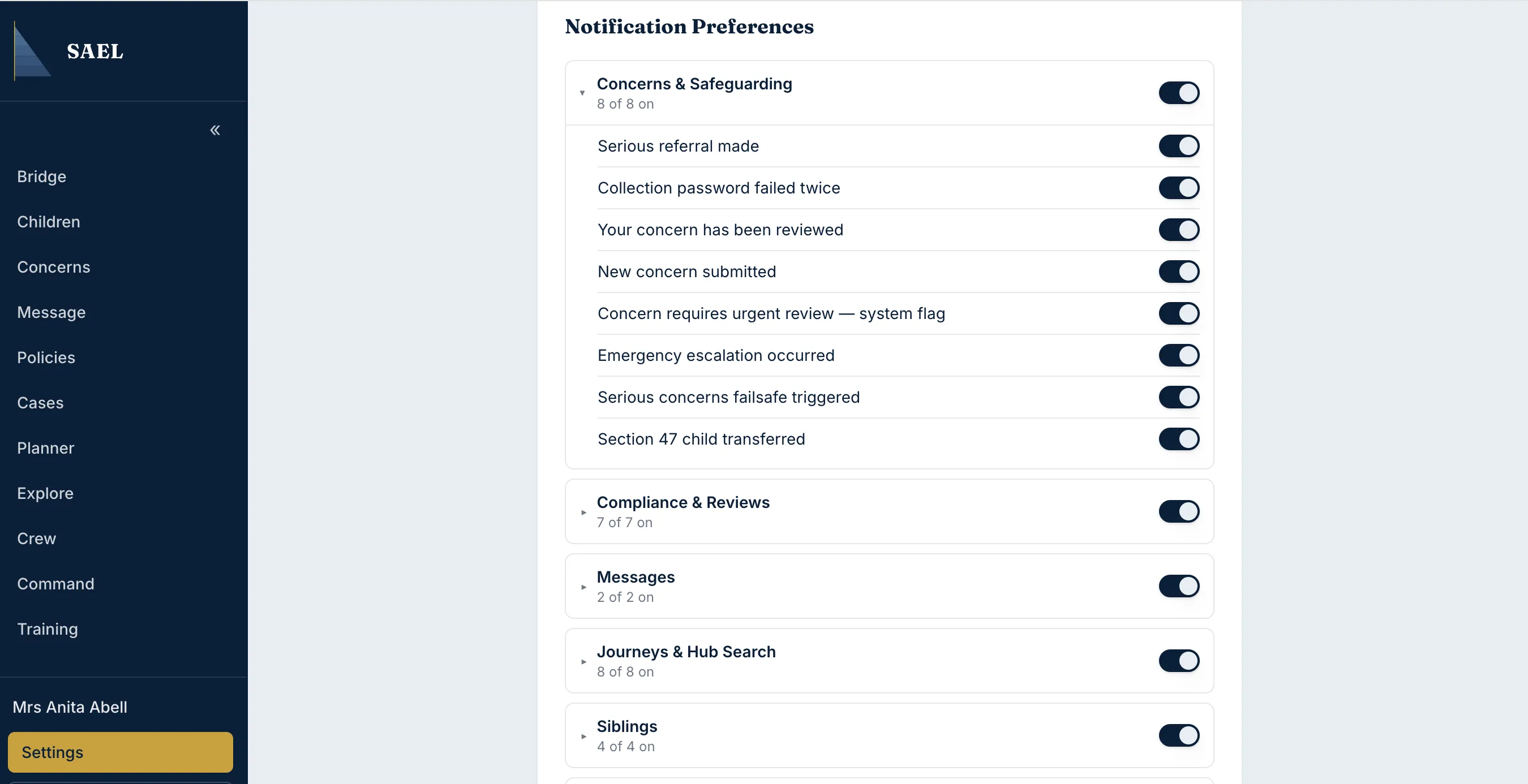
- Review the category headings. Examples include Concerns & Safeguarding, Compliance & Reviews, Journeys & Hub Search and other role-specific groups.
Turn a whole category on or off
Section titled “Turn a whole category on or off”- Find the category you want to change.
- Use the arrow/heading area to expand the category and inspect the individual notification types before changing everything.
- The line beneath the category shows how many notifications are currently on (for example, 4 of 6 on).
- If every notification is on or off, use the category switch to turn the whole group on or off.
- If the category is in a mixed state, use Turn all on when you want every notification in that category enabled. To turn a mixed category off, expand it and turn off the individual notification types.
Change one notification
Section titled “Change one notification”- Expand the relevant category.
- Find the exact notification label, such as an urgent concern review, a compliance reminder or a Journey update.
- Use its switch to turn that notification on or off.
- Wait for the updated preference to save. Preferences are saved automatically; there is no separate Save button for each notification.
Choose Email or SMS where offered
Section titled “Choose Email or SMS where offered”- Find an enabled notification type that shows Email or SMS buttons.
- Select Email or SMS to add that delivery channel. A selected button is shown as active.
- Select the active channel again to remove it.
- Keep in mind that in-app delivery remains included. SAEL only displays Email or SMS where the notification type allows that channel and the platform has enabled that channel for the notification’s urgency/severity.
If a channel button is not shown, it may not be available for that event or may not be enabled platform-wide. You cannot turn on a channel that is not offered in the screen.
Other account details
Section titled “Other account details”The Account section shows your full name, email and role. These are display details in this screen; to change your email, contact SAEL support. Your role is assigned through the setting’s account/role process, not by editing the role label in Settings. Use Sign out at the bottom of the account section when you need to end your session on a shared device.